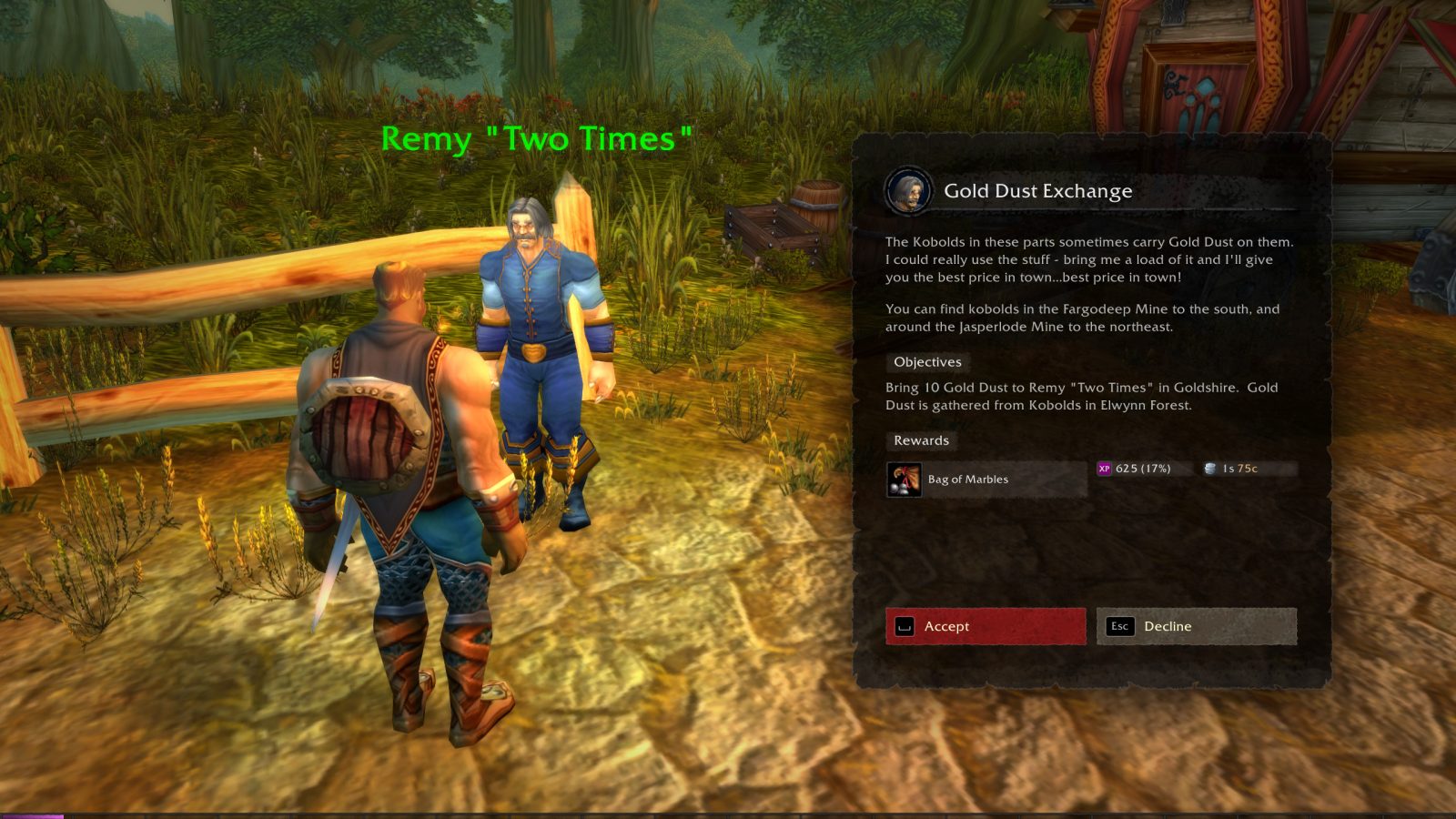
Quest Dialogue UI with built-in camera control and gamepad support.
Features
- Select options and accept quests by pressing the keyboard or gamepad button.
- Control camera motion to enhance immersion. (You can disable camera movement in the settings)
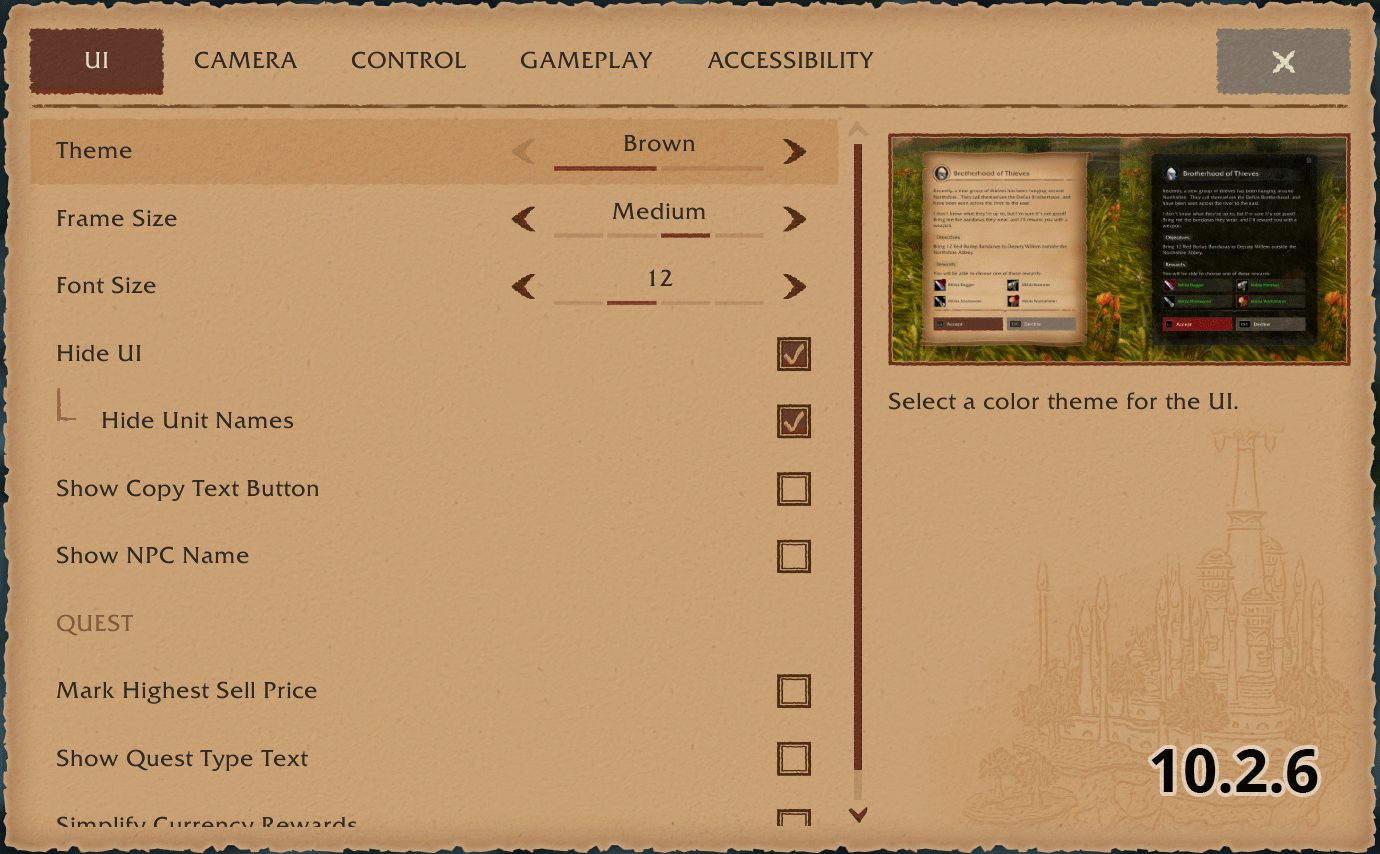
- Adjustable font size to increase readability.
- Copy dialogue text and NPC chat messages.
- Display the lore text when you pick up a quest item.
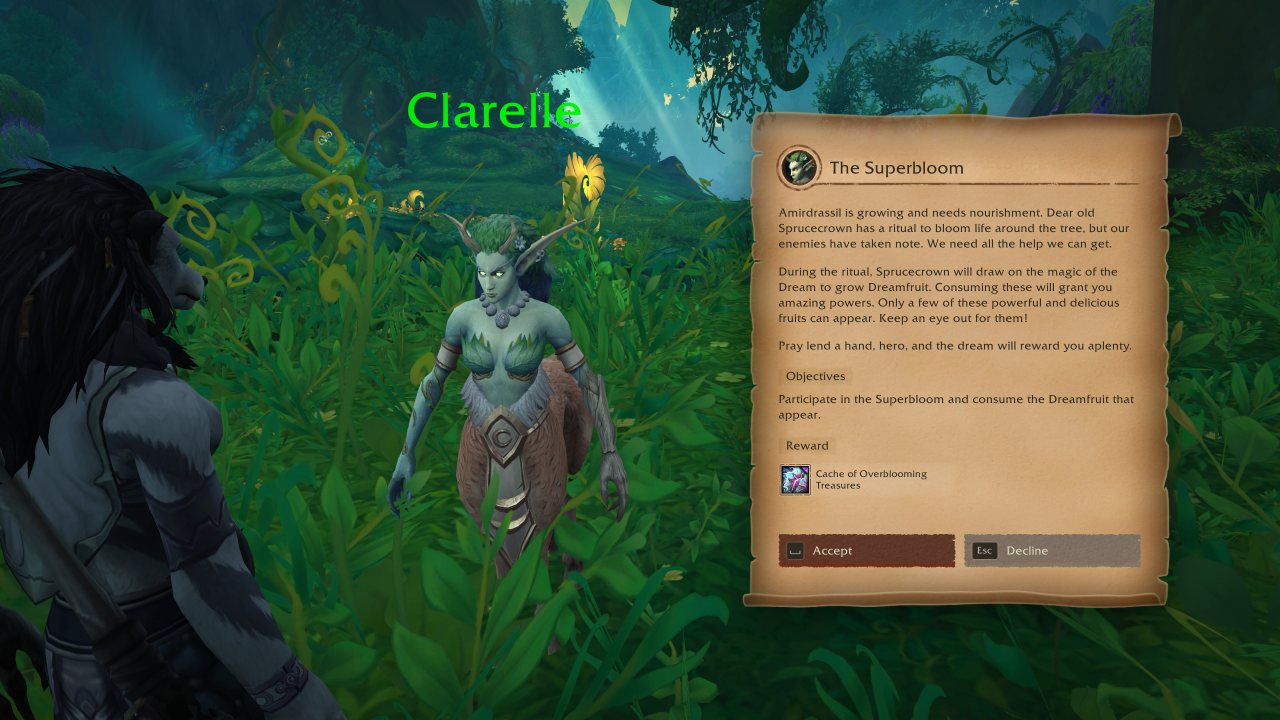
Quest UI - Light Theme
Quest UI - Dark Theme
Book UI - Parchment
Book UI - Metal
ABOUT THIS LISTING
This page describes Dialogue UI by Peterodox. The description and screenshots are the author's own, imported from their listing on CurseForge on 3 October 2026: https://www.curseforge.com/wow/addons/dialogueui
Mythiq.net hosts no files for it. The download button goes straight to the release file on edge.forgecdn.net, so you are downloading from the author's own host, not from a copy of ours.
The download count, rating and comments on this page start at zero and count Mythiq.net only. The source's own figures are not copied here — they measure a different site, and a number that cannot be checked against our own ledger is not worth printing.
Media
Quest UI - Dark
[TEMP] Uncollected Appearance
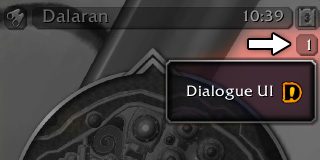
AddOn Compartment
Texture Slice Change in 10.2.7
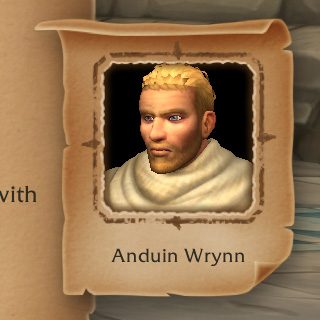
Quest Portrait
Requirements
Game versions
5.5.4
12.1.0
2.5.6
1.15.9
12.1.5
GAME FLAVOUR
This is a Classic build. Retail and Classic run different interface APIs, and an addon built for one throws Lua errors on the other — check you are installing into the right client folder.
INTERFACE VERSION
Built against game version 5.5.4, 12.1.0, 2.5.6, 1.15.9, 12.1.5. After a patch, an addon that has not been updated is flagged out of date; most keep working, and the "Load out of date AddOns" checkbox on the character screen lets you try.
DEPENDENCIES
Some addons need a separate library addon (Ace3, LibStub and friends) that is not bundled. If the addon does not appear in the list in game, a missing dependency is the usual reason.
Installation
1. Quit World of Warcraft completely. The game reads the AddOns folder at launch and will overwrite settings for an addon added while it is running.
2. Download the archive with the button on this page and unzip it.
3. Move the folder — the one with the .toc file in it, not the zip's wrapper folder — into:
World of Warcraft\_classic_era_\Interface\AddOns (or _classic_ for the current Classic expansion)
4. Start the game. On the character selection screen, click AddOns and check that it is listed and enabled.
IF IT DOES NOT APPEAR
Nine times out of ten the folder is nested one level too deep. Interface/AddOns/Thing/Thing/Thing.toc will not load; Interface/AddOns/Thing/Thing.toc will.
UPDATING
Delete the old folder before unzipping the new one. Unzipping over the top leaves files behind that the new version no longer expects.
This release downloads from edge.forgecdn.net, not from us, so
there is no checksum to compare against. Scan the archive before you unpack it.
Tell us if something is wrong — a file that will not work, content taken from
someone else, or anything that looks unsafe. Reports go to our review team, not
to the author.
We use cookies to ensure that we give you the best experience on our website and improve your experience. By continuing to use this site you consent to such use of cookies.

![[TEMP] Uncollected Appearance](/assets/img/uploads/mods/modshot_cat_dialogue-ui_8e31a0b8.jpg)