Scan for rare mobs so you can find them and their loot
SilverDragon
SilverDragon tracks rares in World of Warcraft. It will try everything possible to notice them and tell you about them.
How does it search?
Vignettes
Those little skull icons you see on the minimap. If one of them is a rare SilverDragon knows about, it'll yell at you.
Targets
If you mouse over or target a rare mob, SilverDragon will notice it.
Nameplates
If you have enemy nameplates turned on, SilverDragon will keep an eye on them to look for the names of known rares.
Macro
SilverDragon can also create a macro to target any rares that are known in the current zone. You can stick this on your actionbars as a button to spam while chasing after a rare, or bind it to a key. This is sort of a last resort.
Chat
Some rares yell in zone chat. If SilverDragon notices those yells, it'll alert you.
How will I know when a rare is seen?
Frame
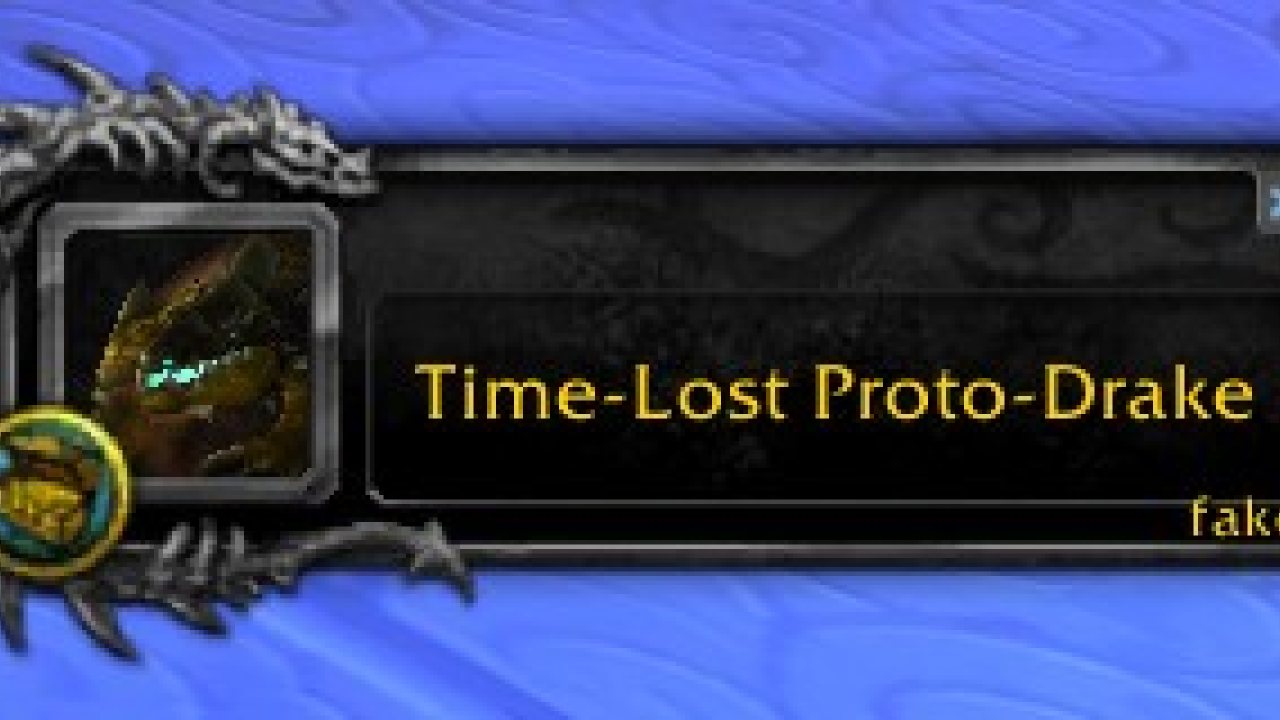
When a rare appears, SilverDragon will pop up a frame that you can click on to target it.
Warning: If you're in combat, secure action restrictions mean that it won't show up until combat finishes.
Sounds
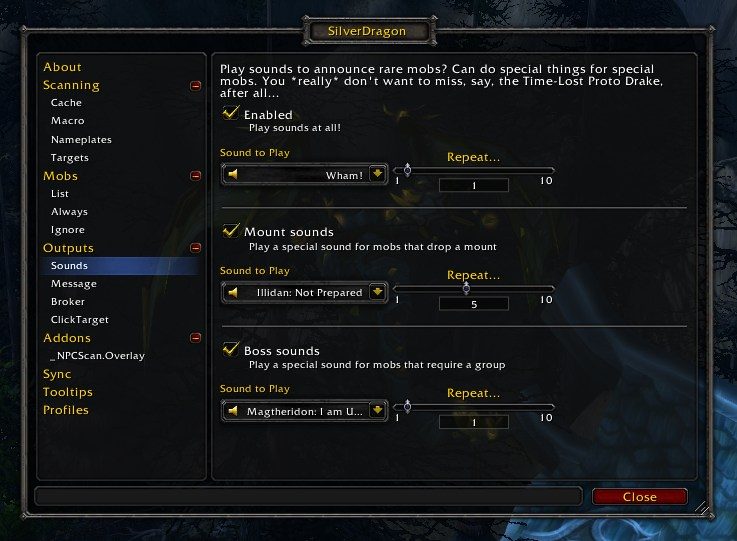
You can choose from assorted sounds to play when a rare is seen. The sound can loop for a while, to make sure you don't miss it.
There's special settings for rares that drop mounts and world boss rares which you might want to call up a group for. If you're sitting mostly-AFK on a Time-Lost Proto Drake spawn, you probably want the sound that plays to be utterly ridiculous and go on for a good long while, to make sure you don't miss that sucker.
Messages
A notice can be sent to a number of places:
- your scrolling combat text
- your chat frame
- a channel in your chat frame (announcing it to your party, for instance)
- a popup window
- etc
History
A log of seen rares will be shown in a window, so you can easily glance over spawn times.
Other useful things?
Custom mobs
In SilverDragon's options you'll find a "Mobs" section. In the "Always" section, you can add any mob you want to be scanned for. All you need to know is the mob id.
So, let's say you wanted to keep an eye out for Lil Timmy in Stormwind, to buy the kitten he sells. You would…
- Go to his wowhead page.
- Grab his id from the URL. It's 8666.
- Enter 8666 into the "add" field, and click "okay".
- Play with your new kitten.
Yes, this example dates me.
Ignoring mobs
If there's some mob you don't want to hear about for whatever reason, just go to the "Ignore" section of the options. Again, enter the mob's id into the "add" box, then click okay. Bam! You will never again be told that Vern is up.
(Actually, Vern is ignored by default. But you get the idea.)
Alternately, right-click the close button for the popup and that'll ignore it as well.
Syncs
SilverDragon will talk to itself. It can communicate with other copies of itself run by people in your party / guild, and tell you when they see a rare mob. (If there's a group of you camping all the Time-Lost Proto Drake spawns, say…)
You can turn this off completely, if you want to be private about it.
Tooltips
Some rares are part of an achievement. When you mouse over a rare mob, SilverDragon will add to the tooltip whether you've already killed it, so you know whether you need to rush for it.
Broker
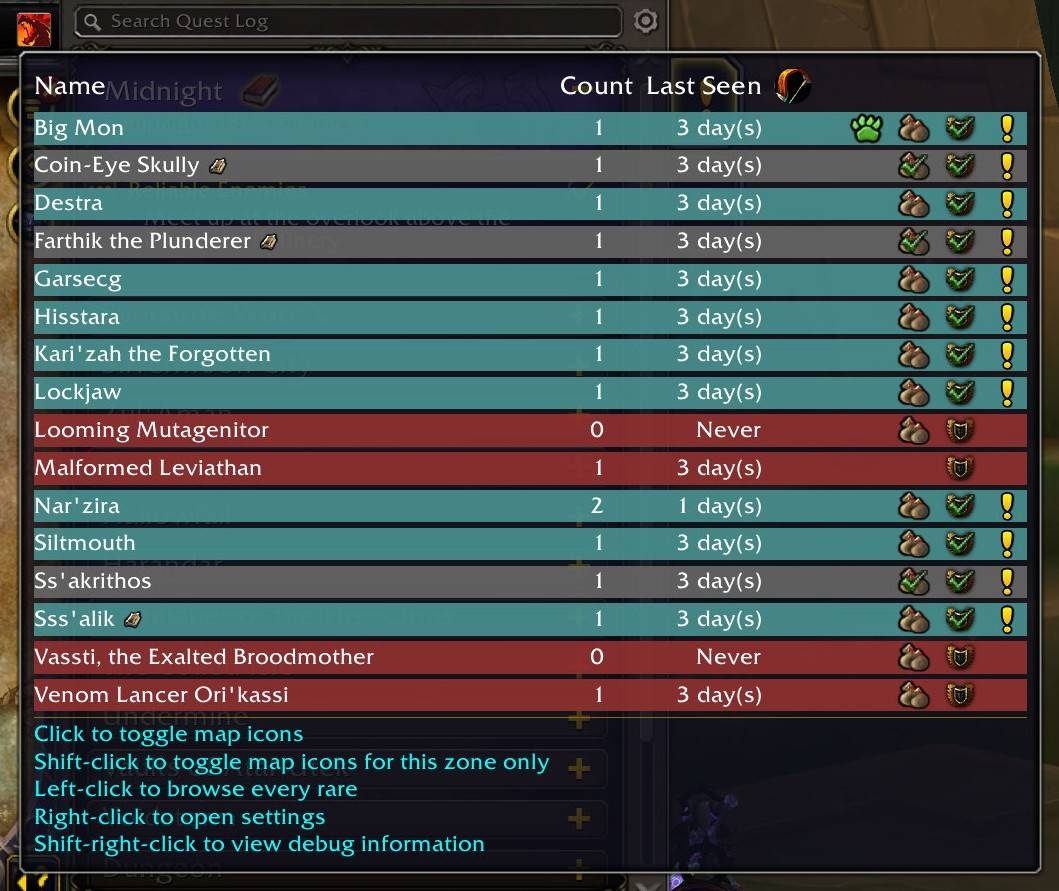
SilverDragon includes a Broker plugin. It'll attach itself to the addon compartment and also your minimap, or a Broker container you have installed, and show you a list of the mobs it knows about in the current zone.
Other addons you may find useful
- AppearanceTooltip: integrates with the SilverDragon loot popups and shows transmog-known status.
- ServerRestartSound: plays a sound when the server's about to restart. If you're AFK-camping for a rare spawn, you probably want to know about this.
- ObjectScanner: A few rares are hidden away behind interacting with world-objects like the Edge of Reality. These have to be localized individually, so you need to work out what they're called in your language and set up a watch for tooltips mentioning them. This addon does that bit.
- ButtonBin: a broker display. SilverDragon's minimap icon will show up on it (or any other addon like it) instead of cluttering up your minimap, if you have it installed.
ABOUT THIS LISTING
This page describes SilverDragon - Rare Scanner by Kemayo. The description and screenshots are the author's own, imported from their listing on CurseForge on 14 August 2026: https://www.curseforge.com/wow/addons/silver-dragon
Mythiq hosts no files for it. The download button goes straight to the release file on edge.forgecdn.net, so you are downloading from the author's own host, not from a copy of ours.
The download count, rating and comments on this page start at zero and count Mythiq only. The source's own figures are not copied here — they measure a different site, and a number that cannot be checked against our own ledger is not worth printing.
Media
On the map
Browser: traditional theme
Broker tooltip
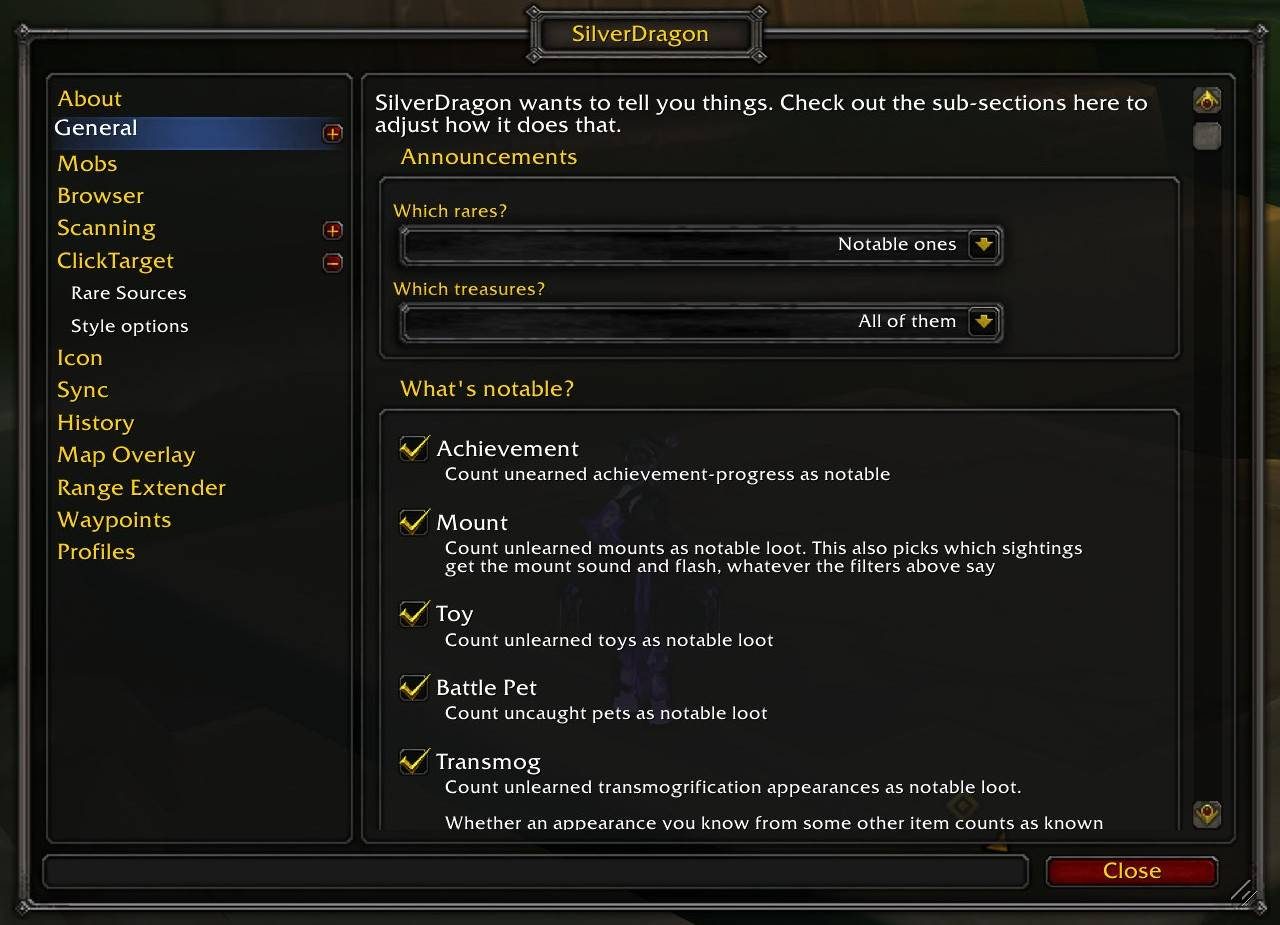
Options
Options: sounds
Requirements
Game versions
3.4.5
1.15.8
5.5.4
12.0.7
12.1.0
2.5.6
GAME FLAVOUR
This is a Classic build. Retail and Classic run different interface APIs, and an addon built for one throws Lua errors on the other — check you are installing into the right client folder.
INTERFACE VERSION
Built against game version 3.4.5, 1.15.8, 5.5.4, 12.0.7, 12.1.0, 2.5.6. After a patch, an addon that has not been updated is flagged out of date; most keep working, and the "Load out of date AddOns" checkbox on the character screen lets you try.
DEPENDENCIES
Some addons need a separate library addon (Ace3, LibStub and friends) that is not bundled. If the addon does not appear in the list in game, a missing dependency is the usual reason.
Installation
1. Quit World of Warcraft completely. The game reads the AddOns folder at launch and will overwrite settings for an addon added while it is running.
2. Download the archive with the button on this page and unzip it.
3. Move the folder — the one with the .toc file in it, not the zip's wrapper folder — into:
World of Warcraft\_classic_era_\Interface\AddOns (or _classic_ for the current Classic expansion)
4. Start the game. On the character selection screen, click AddOns and check that it is listed and enabled.
IF IT DOES NOT APPEAR
Nine times out of ten the folder is nested one level too deep. Interface/AddOns/Thing/Thing/Thing.toc will not load; Interface/AddOns/Thing/Thing.toc will.
UPDATING
Delete the old folder before unzipping the new one. Unzipping over the top leaves files behind that the new version no longer expects.
This release downloads from edge.forgecdn.net, not from us, so
there is no checksum to compare against. Scan the archive before you unpack it.
Version history
v2026.26Latest
12 Aug 2026 · 610 KB via edge.forgecdn.net · 12 downloads Download
Off-site on edge.forgecdn.net —
no checksum, because we never held this file.
Link checked by our review team on 14 Aug 2026.
Tell us if something is wrong — a file that will not work, content taken from
someone else, or anything that looks unsafe. Reports go to our review team, not
to the author.
We use cookies to ensure that we give you the best experience on our website and improve your experience. By continuing to use this site you consent to such use of cookies.