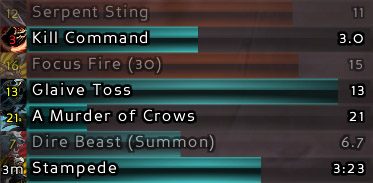
Provides visual, auditory, and textual notifications about cooldowns, buffs, and pretty much every other element of combat.
TellMeWhen
TellMeWhen is a WoW addon that provides visual, auditory, and textual notifications about cooldowns, buffs, and pretty much every other element of combat.
Discord - Questions & Discussion
Join the official TellMeWhen Discord! https://discord.gg/NH7RmcP - Ask questions, share configuration, or just hang out.
GitHub - Bugs and Feature Requests
Find a bug? Have a feature request? Please open an issue on GitHub. CurseForge comments are not monitored.
Features
TellMeWhen is...
Flexible
Icons can track any of the following things:
- Cooldowns
- Buffs/Debuffs
- Reactive abilities
- Temporary weapon enchants
- Totems
- Rune cooldowns
- Internal cooldowns
- Others' cooldowns
- Diminishing returns
- Spell casts
- ...And any combination of over 110 other things with easy-to-use conditions.
Customizable
- Icons can be set to show or hide based on the status of their basic element and their usability based on range, duration, stacks, and resources.
- All icons can show the standard cooldown animation to display their status, and are compatible with OmniCC.
- There are over 110 conditions that can be configured to make an icon show only under very specific or very general circumstances.
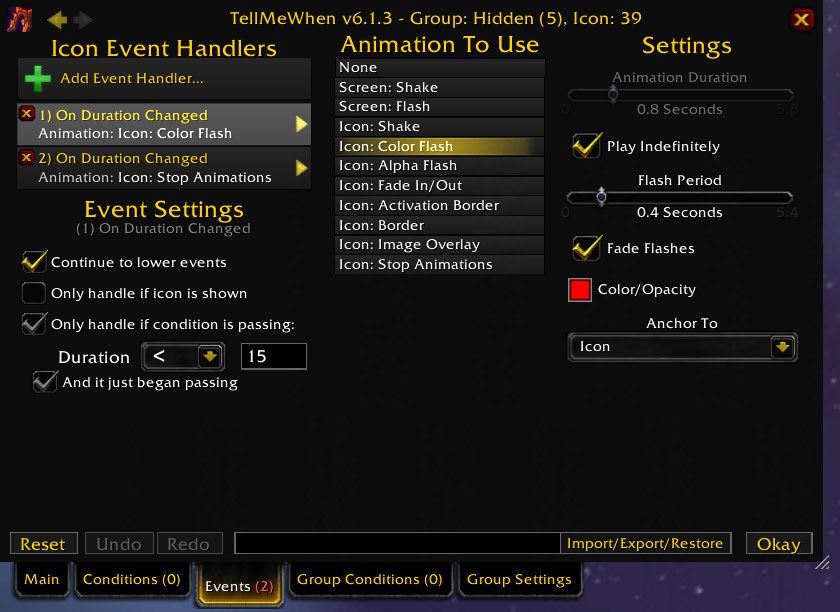
- You can set a sound to play when important attributes of an icon change.
- You can also set text to be announced/displayed when an icon's attributes change.
- Icons can show at different transparency levels based upon the usability/existence of what they are checking.
- Icons can show status bars on top of them, indicating the required resources and their remaining cooldown/duration in a different way.
- Icons can be skinned with Masque (formerly ButtonFacade).
Instructions
To lock and unlock TellMeWhen, type "/tmw" or "/tellmewhen".
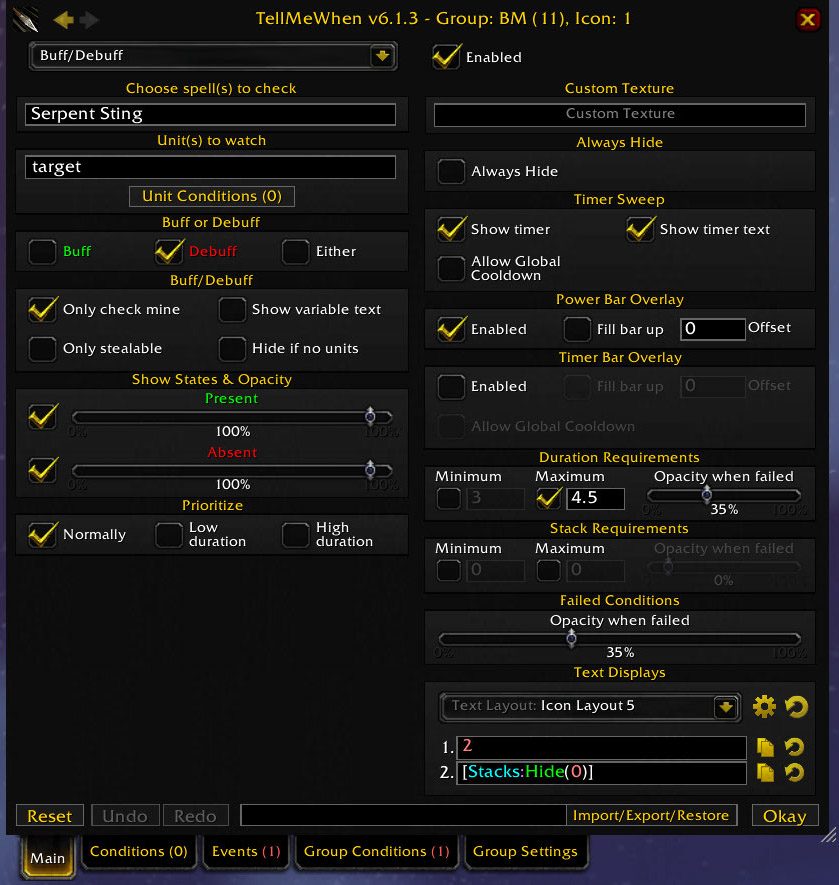
When you first log in with TellMeWhen installed, you will see one group of four icons in the center of your screen. To begin using TellMeWhen, right-click on one of these icons, and the icon editor will appear. You need to select an icon type from the dropdown menu and enable the icon, and then configure the icon to suit your needs based on the settings that are available. An explanation of what most settings do can be found in the tooltip displayed when you mouse over a setting.
You can also drag spells from your spellbook, your pet's spellbook, or items from your inventory to quickly set up a cooldown icon for that spell/item. Icons can be spatially manipulated by holding down the right mouse button and dragging them around. When they are dropped on another icon, a menu will appear asking you what you want to do with the icon - Options include Move, Copy, and Swap.
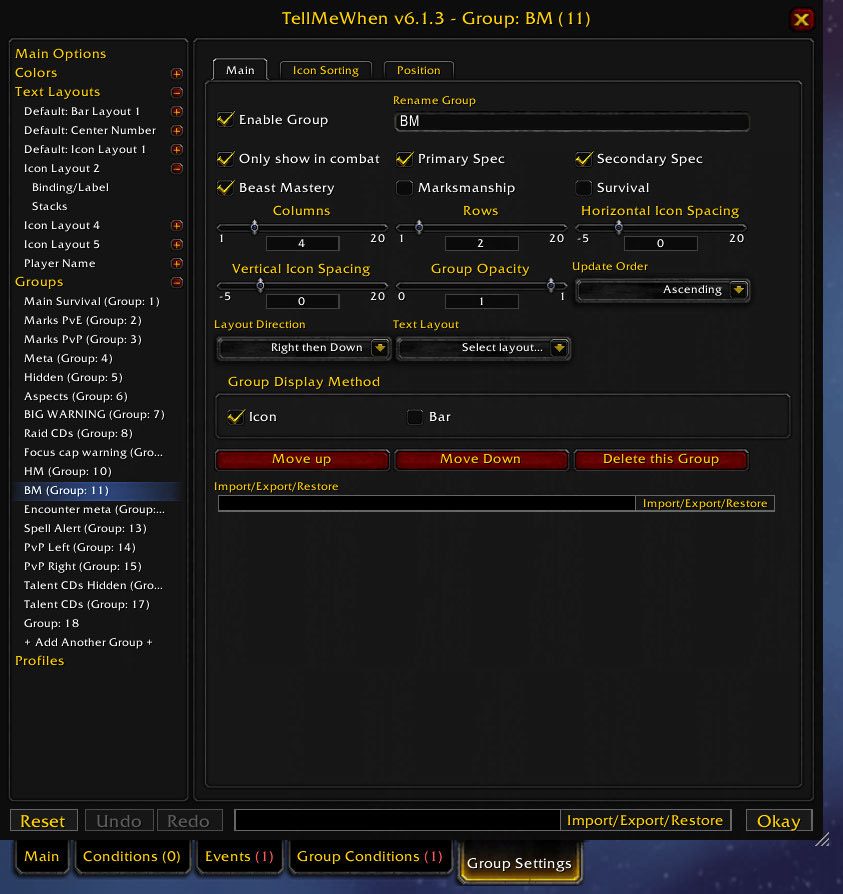
General settings can be accessed via '/tmw options', the Blizzard interface options, or the 'Group Settings' tab of the icon editor.
All available slash commands are:
- '/tmw' - Toggles TellMeWhen between locked (functional) or unlocked (configuration) states.
- '/tmw options' - Opens the general settings configuration for TellMeWhen.
- '/tmw profile "Profile Name"' - Loads a TellMeWhen profile. Profile name is case sensitive, and must be quoted if it contains spaces. (E.g. '/tmw profile "Cybeloras - Aerie Peak"').
- '/tmw enable global|profile groupID iconID' - Enables the specified group or icon (E.g. '/tmw enable 2 4' or '/tmw enable global 3').
- '/tmw disable global|profile groupID iconID' - Disables the specified group or icon (E.g. '/tmw disable profile 2 4' or '/tmw disable 3').
- '/tmw toggle global|profile groupID iconID' - Toggles the specified group or icon between enabled and disabled (E.g. '/tmw toggle global 2 4' or '/tmw toggle profile 3').
- '/tmw counter counter-name +|-|/|*|= number' - Mutate a TMW counter. Counters can be checked in conditions or displayed on icons. (E.g. '/tmw counter casts = 0' or '/tmw counter phase + 1')
- '/tmw cpu' - Enables and displays a UI for measurements of icon performance. This is an advanced feature; no guidance on reading the data will be offered.
Conditions
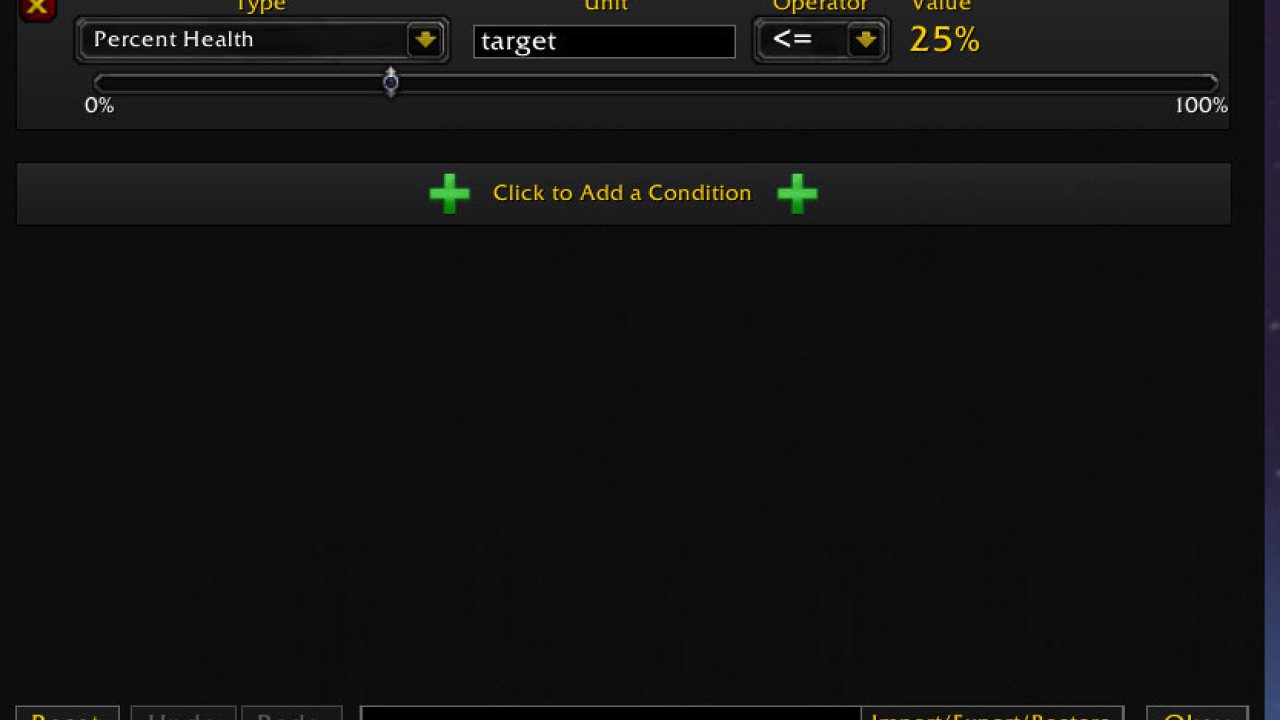
Conditions are a very powerful feature of TellMeWhen that allow you to narrow the circumstances under which an icon or group should show. To configure conditions for an icon, click the condition tab on the Icon Editor. Conditions can check a wide variety of things, and I recommend that you explore the condition type menu to see what is available. You can add multiple conditions to an icon, and you can group different conditions together for use with the Boolean operators AND and OR by clicking the parenthesis between each condition.
Conditions are also used for other purposes throughout TellMeWhen.
Meta icons
Meta icons are one other special feature of TellMeWhen that makes it so powerful and versatile. Meta icons allow you to specify a list of other icons to check within the meta icon, allowing you to have a large number of icons for different situations show in the same location on your screen. By chaining meta icons together
Groups
All TellMeWhen icons belong to a parent group. Each of these groups have many settings; some affect their appearance and size, while other affect their functionality. The options for a group can be accessed by typing "/tmw options", or by clicking the group settings tab on the icon editor. Groups can also have conditions set to govern when they are shown and hidden - accessed through the Group Conditions tab of the icon editor, they are configured exactly the same way as icon conditions.
Troubleshooting
PLEASE DIRECT ALL FEEDBACK/BUGS/SUGGESTIONS HERE
- Make sure that TellMeWhen is not in configuration mode. Type '/tmw' to toggle configuration mode on and off.
- The most common problem people encounter is caused by not entering the name correctly during configuration. Make sure you enter names EXACTLY as they are named when you mouse over them. For buffs this is often different from the ability/totem/trinket/enchant/talent which casts the buff, so be sure to check. Known buffs and debuffs are shown as a dark purple or a warrior brown color in the suggestion list.
- If the name of the ability does not work properly, use the SpellID. SpellIDs can be found by looking at the suggestion list that pops up as you begin typing in the name, or by finding the ability on a site such as Wowhead. The spellID is in the url, for example: classic.wowhead.com/spell=53351
- Check the settings of the icon's group.
- Check the icon's settings in the other tabs of the icon editor.
Donations
If you enjoy using TellMeWhen or if it has helped out your game-play considerably, please consider donating so that I may be able to afford time to develop more new features. Click the button below to donate securely through PayPal. Thank You!
TellMeWhen is also looking for individuals who are well-versed in both English and either German, Russian, Korean, French, or Portuguese to contribute to the translations! If interested, you can begin translating here, or PM me if you have questions. Thank You!
Comments
Looking for the Curseforge comments? They haven't been monitored for a long time and have been removed. Try one of the following:
- For questions & discussion, join the official TellMeWhen Discord! https://discord.gg/NH7RmcP - Ask questions, share configuration, or just hang out.
- For bug reports and feature requests, please open an issue on GitHub.
ABOUT THIS LISTING
This page describes TellMeWhen by Cybeloras. The description and screenshots are the author's own, imported from their listing on CurseForge on 14 August 2026: https://www.curseforge.com/wow/addons/tellmewhen
Mythiq hosts no files for it. The download button goes straight to the release file on edge.forgecdn.net, so you are downloading from the author's own host, not from a copy of ours.
The download count, rating and comments on this page start at zero and count Mythiq only. The source's own figures are not copied here — they measure a different site, and a number that cannot be checked against our own ledger is not worth printing.
Media
WoWScrnShot_030413_223056.jpg
WoWScrnShot_030413_215754.jpg
WoWScrnShot_030413_215705.jpg
WoWScrnShot_030413_215326.jpg
WoWScrnShot_030413_215047.jpg
Requirements
Game versions
5.5.4
12.0.7
12.1.0
2.5.6
1.15.9
GAME FLAVOUR
This is a Classic build. Retail and Classic run different interface APIs, and an addon built for one throws Lua errors on the other — check you are installing into the right client folder.
INTERFACE VERSION
Built against game version 5.5.4, 12.0.7, 12.1.0, 2.5.6, 1.15.9. After a patch, an addon that has not been updated is flagged out of date; most keep working, and the "Load out of date AddOns" checkbox on the character screen lets you try.
DEPENDENCIES
Some addons need a separate library addon (Ace3, LibStub and friends) that is not bundled. If the addon does not appear in the list in game, a missing dependency is the usual reason.
Installation
1. Quit World of Warcraft completely. The game reads the AddOns folder at launch and will overwrite settings for an addon added while it is running.
2. Download the archive with the button on this page and unzip it.
3. Move the folder — the one with the .toc file in it, not the zip's wrapper folder — into:
World of Warcraft\_classic_era_\Interface\AddOns (or _classic_ for the current Classic expansion)
4. Start the game. On the character selection screen, click AddOns and check that it is listed and enabled.
IF IT DOES NOT APPEAR
Nine times out of ten the folder is nested one level too deep. Interface/AddOns/Thing/Thing/Thing.toc will not load; Interface/AddOns/Thing/Thing.toc will.
UPDATING
Delete the old folder before unzipping the new one. Unzipping over the top leaves files behind that the new version no longer expects.
This release downloads from edge.forgecdn.net, not from us, so
there is no checksum to compare against. Scan the archive before you unpack it.
Version history
v12.1.1Latest
13 Aug 2026 · 1.9 MB via edge.forgecdn.net · 14 downloads Download
Off-site on edge.forgecdn.net —
no checksum, because we never held this file.
Link checked by our review team on 14 Aug 2026.
Tell us if something is wrong — a file that will not work, content taken from
someone else, or anything that looks unsafe. Reports go to our review team, not
to the author.
We use cookies to ensure that we give you the best experience on our website and improve your experience. By continuing to use this site you consent to such use of cookies.