Clique is back and should be fully functional. Last week, Blizzard made some broken changes that affected the core functionality of unit frames and click-casting addons. It's taken some time to resolve that but the issues should be mostly ironed out.
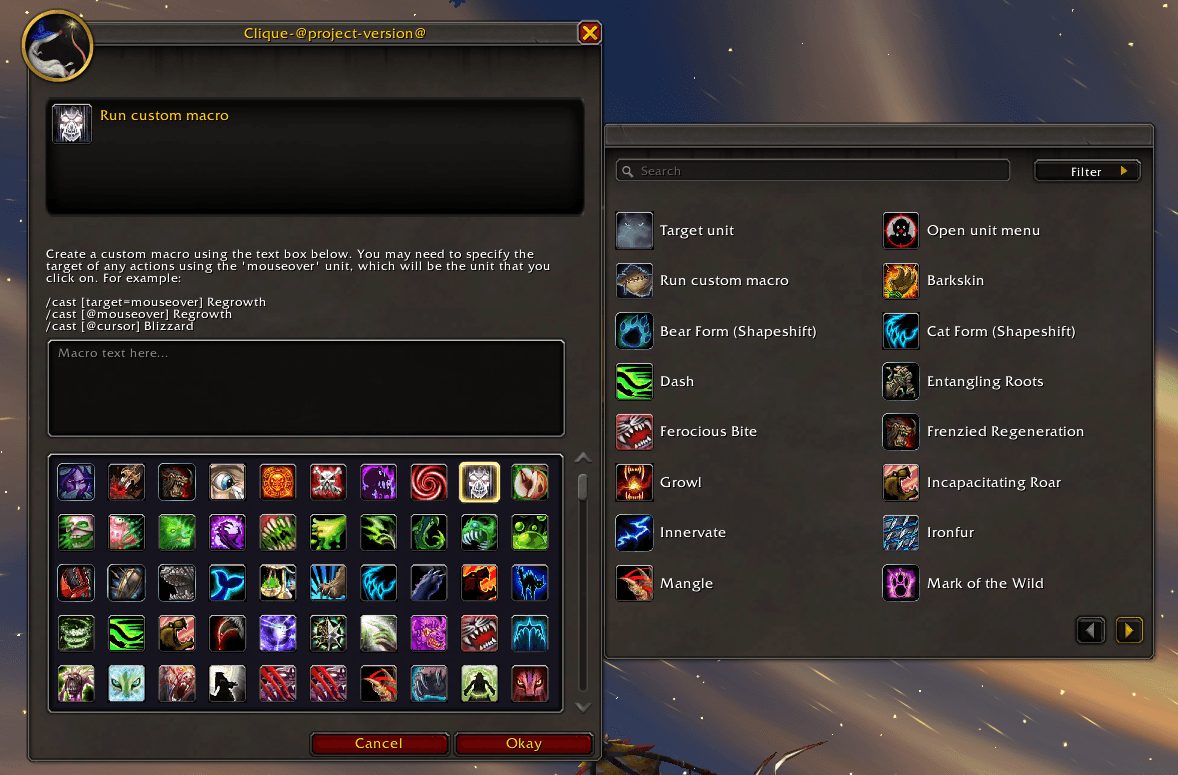
However as a result of that you now need explicitly bind the Target unit and Show unit menu actions in Clique if you want that functionaility. This should take about 10 seconds, just bind those actions from the right-hand binding window to whatever keypress or click you prefer. This should be a one-time setup and unfortunately is necessary due to the changes they have made.
Clique is updated and working for Midnight, just download and install as usual. Clique is also available for Wow Classic and Wow TBC Classic, just download the appropriate version.
Clique is a simple addon that enables powerful click-casting and hover-casting on your unit frames and in the 3D game world. You can bind virtually any mouse or keyboard combination to a spell or macro. In it's normal configuration this enables you to use the bindings over your unit frames in order to cast spells directly on that unit. This allows you to more quickly select both the spell to cast, and the target of the spell without requiring an extra click.
Support
If you're having an issue, the best way to get support is via Discord. Please join our Discord server here: https://discord.gg/StzZfsbUSQ
Getting Started
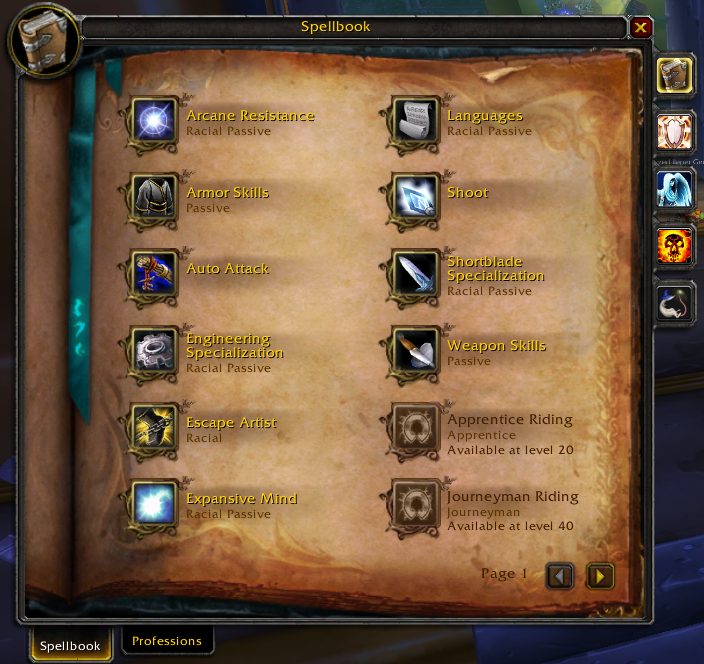
To begin with Clique, open your spellbook and click on the new tab that is shown there. You can also open the configuration GUI by running the /clique slash command. From this binding interface you can add, remove and alter any of your Clique bindings. You will be unable to make these changes when you are in combat due to limitations in the Blizzard API.
Binding a spell
Binding a spell is just a matter of finding the spell in your spellbook, putting your mouse over it, and performing the binding you would like to add. For example, if you'd like to set 'Regrowth' to activate on 'Shift-LeftButton', then you just find that spell in your spellbook and then Shift-LeftClick on it. You can also bind keyboard combinations, so you could do the same with Shift-R if you'd like.
Keep in mind when you are setting your bindings that they will override any bindings that are already set on the frame, for example the default bindings to 'Target unit' and 'Show unit menu'. You can override these bindings if you would like, but you should then set a new different combination that will activate the original functions
Binding the 'Target unit' or 'Show unit menu' actions
If you've rebound or lose these default bindings, you can re-bind them using the 'Bind other' button in the Clique configuration. Click on the button, and choose the correct action and you will be presented with a dialog box that allows you to set the binding for that action. Simply choose a new key combination, and you will be able to target units and open your menu again.
Binding a macro
Binding a macro can also be found on the 'Bind other' button. You'll be given a new window with instructions and suggestions about writing your macros, but other than that the process should seem very similar.
Managing click-sets
Each binding can belong to a number of binding-sets. These sets determine when the binding is active. The built-in binding-sets are as follows:
- default - This set is always active on registered unit frames, unless overridden by another binding-set.
- ooc - This set is only active when you are out of combat. Once you begin fighting, these bindings will no longer be active.
- friend - This set is only active when you are activating a binding on a friendly unit, i.e. one you can assist.
- enemy - This set is only active when you are activating a binding on an enemy unit, i.e. one you can attack.
- hovercast - These bindings will be available whenever you are over a unit frame, or a unit in the 3D world.
- global - These bindings will be always available. They do not specify a target for the action, so if the action requires a target, you must specify it after performing the binding.
Clique and dual talent specs
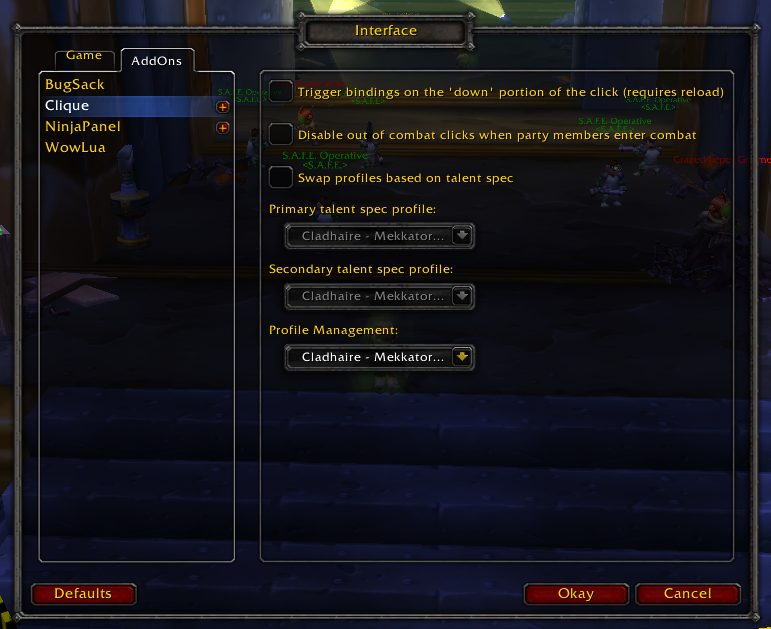
In addition Clique allows you to set up different profiles, and can automatically switch between them when your character changes talent groups. In order to set this up, click the 'Options' button, or navigate to the Clique options section of the Interface Options menu. Here you can create new profiles and change your options to activate different profiles depending on talent spec.
Bug reports:
If you are going to submit a bug report, please include the following information:
- What version of Clique you are using (/dump Clique.version)
- What unit frames you are using
- What specific bindings are not working
Donations:
Some folks have asked for how they can donate money, and for many years I've enjoyed hearing about how my addons have helped other people enjoy World of Warcraft. If you would like to donate, I'd ask you to make a donation to the Colorectal Cancer Alliance, a worthy organisation that helped my sister immensely from her diagnosis through her final years. If you or a family member suspect you might have something not right in your butt, please have a doctor check it out. Colorectal cancer is one of the most preventable cancers in the world.
ABOUT THIS LISTING
This page describes Clique by jnwhiteh. The description and screenshots are the author's own, imported from their listing on CurseForge on 14 August 2026: https://www.curseforge.com/wow/addons/clique
Mythiq hosts no files for it. The download button goes straight to the release file on edge.forgecdn.net, so you are downloading from the author's own host, not from a copy of ours.
The download count, rating and comments on this page start at zero and count Mythiq only. The source's own figures are not copied here — they measure a different site, and a number that cannot be checked against our own ledger is not worth printing.
Media
Screenshot 2024-07-23 192601.png
Screen_shot_2010-10-12_at_11.54.07.png
Screen_shot_2010-10-12_at_12.00.19.png
Requirements
Game versions
4.4.2
5.5.4
12.0.7
12.1.0
2.5.6
1.15.9
3.80.2
GAME FLAVOUR
This is a Classic build. Retail and Classic run different interface APIs, and an addon built for one throws Lua errors on the other — check you are installing into the right client folder.
INTERFACE VERSION
Built against game version 4.4.2, 5.5.4, 12.0.7, 12.1.0, 2.5.6, 1.15.9. After a patch, an addon that has not been updated is flagged out of date; most keep working, and the "Load out of date AddOns" checkbox on the character screen lets you try.
DEPENDENCIES
Some addons need a separate library addon (Ace3, LibStub and friends) that is not bundled. If the addon does not appear in the list in game, a missing dependency is the usual reason.
Installation
1. Quit World of Warcraft completely. The game reads the AddOns folder at launch and will overwrite settings for an addon added while it is running.
2. Download the archive with the button on this page and unzip it.
3. Move the folder — the one with the .toc file in it, not the zip's wrapper folder — into:
World of Warcraft\_classic_era_\Interface\AddOns (or _classic_ for the current Classic expansion)
4. Start the game. On the character selection screen, click AddOns and check that it is listed and enabled.
IF IT DOES NOT APPEAR
Nine times out of ten the folder is nested one level too deep. Interface/AddOns/Thing/Thing/Thing.toc will not load; Interface/AddOns/Thing/Thing.toc will.
UPDATING
Delete the old folder before unzipping the new one. Unzipping over the top leaves files behind that the new version no longer expects.
This release downloads from edge.forgecdn.net, not from us, so
there is no checksum to compare against. Scan the archive before you unpack it.
Version history
v5.0.14-releaseLatest
1 Aug 2026 · 283 KB via edge.forgecdn.net · 12 downloads Download
Off-site on edge.forgecdn.net —
no checksum, because we never held this file.
Link checked by our review team on 14 Aug 2026.
Tell us if something is wrong — a file that will not work, content taken from
someone else, or anything that looks unsafe. Reports go to our review team, not
to the author.
We use cookies to ensure that we give you the best experience on our website and improve your experience. By continuing to use this site you consent to such use of cookies.