This companion addon for Raider.IO shows Mythic Plus scores, Raid Progress, and Recruitment status when hovering over players.
Raider.IO Mythic Plus & Raiding
Overview
This is a companion addon to go along with the Raid and Mythic+ Rankings site, Raider.IO: https://raider.io. With this addon installed, you'll gain access to an easy way to view the Mythic Keystone scores and Raid Progress for players-- all without leaving the game!
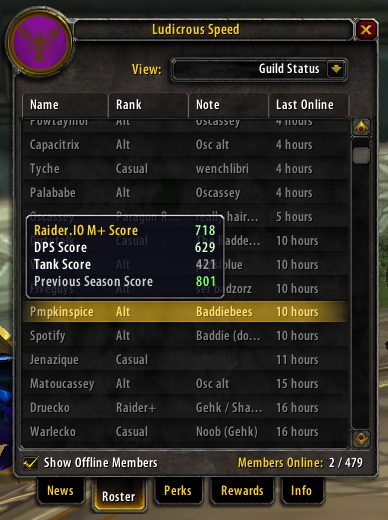
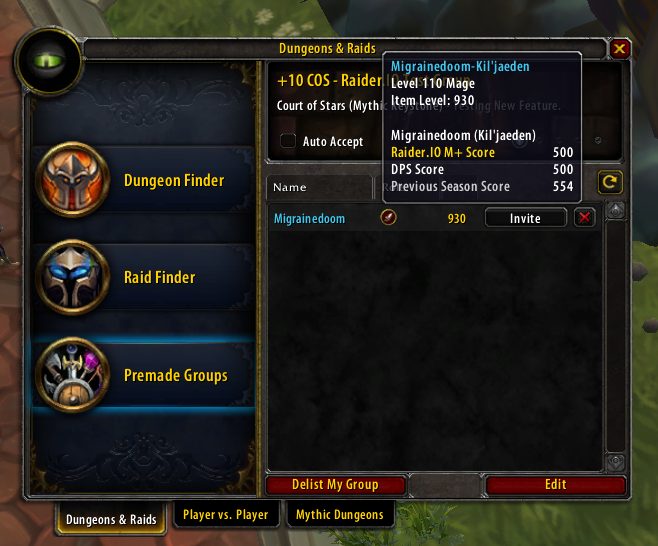
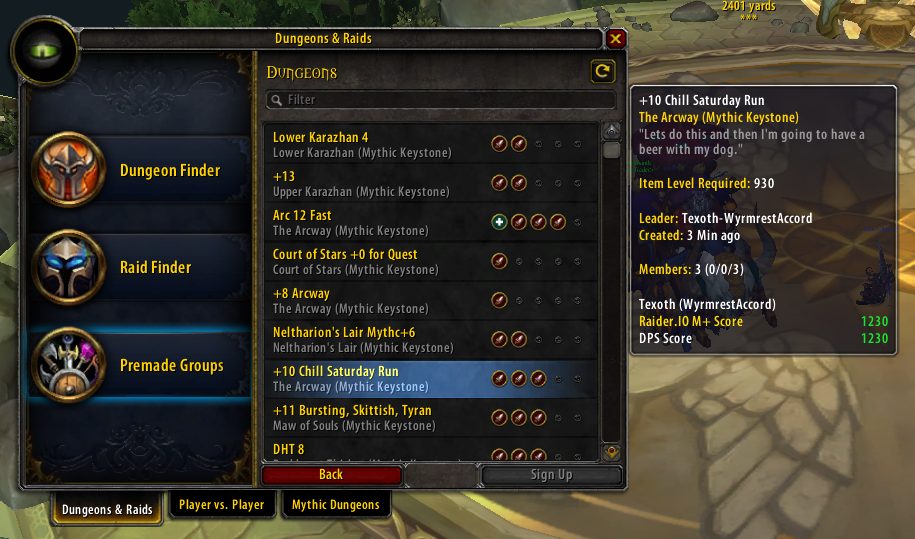
Simply hover over a player with your mouse, your guild roster, or even the Group Finder list where you see queued people; if they meet the minimum qualifications then you'll see their score and best run in the tooltip.
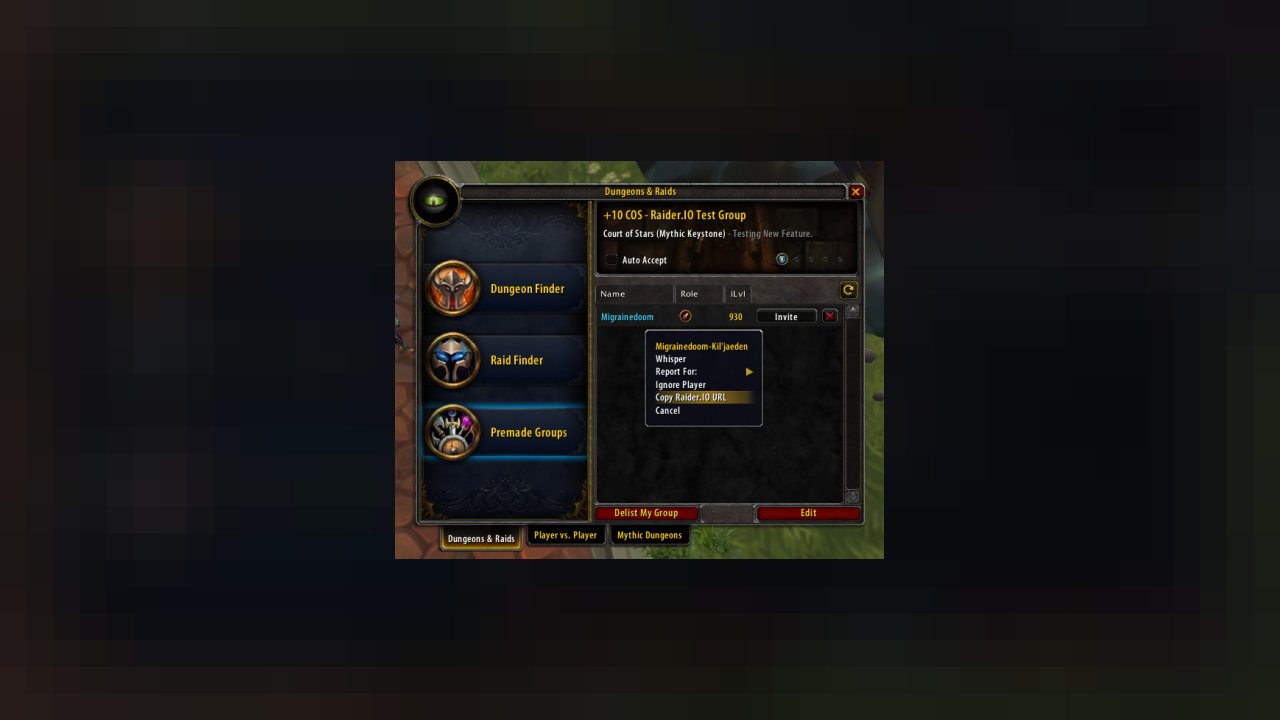
Additionally, you can right-click players from the standard target unit frame to Copy Raider.IO URL and then easily look up their full profile on the site. With this functionality you can directly paste these URLs anywhere on Raider.IO to navigate to that player's profile page.
If you have run into any problems, check out our FAQ at https://raider.io/faq, or join us on Discord at: https://discord.gg/raider #addon-discussions -- we always have people around willing to help.
Getting Started
The easiest way to get started is to use the RaiderIO Desktop App: https://raider.io/addon
Once installed you can load into the game and you will start seeing Scores and Best Runs on players around you. This AddOn works by storing a snapshot of character data from Raider.IO and then using that to populate information on qualified players. To qualify for inclusion in a snapshot, players must meet this criteria:
- Have earned at least 200 points in the current or previous season. Honored and higher patrons do not have a minimum score requirement in order to be shown in the addon.
- Have logged in to the game within the past 21 days
Remember: We update the addon with the latest scores and top runs multiple times each day. Update regularly to ensure you are seeing the freshest information. Using the RaiderIO Client you can keep your addon updated automatically!
Detailed Addon Usage
Our intent with this AddOn is to provide an easy way for people to get some information at a glance when forming groups. There is no substitute for talking with your fellow players, so be a pal and listen if an applicant whispers you. These are the fields we show, and when we show them:
Character Raid & Mythic+ Tooltips
Raid information in tooltips simply lists the best progress seen for the player.
Mythic+ tooltips have a lot of parts to them:
- Raider.IO M+ Score: This is the overall score for this character. If the score is from a previous season, then the value of the score is rounded to the nearest 10s, and is prefixed with ±. You can also identify the previous season score by looking for the (S#) suffix on the tooltip headline.
- Best Run: This will indicate the Mythic+ level for the player's best scoring run, along with the specific dungeon. Up to three plus signs + will be prefixed to the keystone level to indicate how much the keystone was upgraded during that run. Note: when this keyword is highlighted green it means that the player's Best For Dungeon is also the same as their overall Best Run.
- Best For Dungeon: You'll see this line when using LFD to form or join a Keystone group. This will show the Mythic+ level of the player's best scoring run for the chosen dungeon.
- Timed #+ Runs: These lines indicate how many M+ runs have been completed by this player within the timer over the course of the current season. The player's two highest categories of Timed Runs will show by default.
- Main's Best M+ Score / Main's Current M+ Score: This indicates the best character score on this player's account, if they have registered on Raider.IO and linked their Battle.Net account. This will only show if the Main's Score is greater than the current character's score. If someone has a good score on their main, then much of their prior experience will help them perform better in dungeons while on their alt.
Role icons included on Mythic+ tooltips can be thought of as badges earned by accumulating certain amounts of score while playing as that role. Fully opaque icons indicate they've earned at least 80% of their overall score in that role. Semi-transparent role icons indicate they have earned at least 40% of their overall score in that role.
Character Profile Tooltips
You can view your personal M+ and Raid Progress profile when you open the Dungeon Finder. This will be shown as a large tooltip alongside the Dungeon Finder frame with additional details about your per-dungeon performance.
This can be used to help understand what dungeons you should try to focus on in order to raise your score.
By default when you are in the Dungeon Finder it will show your own profile. However, you can press a modifier key (Shift/Alt/Ctrl/Cmd) to show the target character's full profile instead. There is also a config option to invert this behavior.
Keystone Tooltips
You can view additional details when hovering over Mythic+ Keystone items, such as:
- The highest key completed for each member of your group for the dungeon you are in, or queued for.
- Avg. Timed +# Player Score: This is the rounded median score of players who have successfully completed Mythic+ runs in time at this level. This data is sampled from the past 60 days of runs tracked on Raider.IO, and it excludes the top and bottom 1% of scores at each level. This is intended to provide a guide for the type of score you might consider when forming or joining a group based on data seen across all players.
Group Search
You can pull up detailed information for all the characters in your group at once by utilizing the Raider.IO Group Search feature.
- Click the magnifying glass icon at the bottom of the Dungeon Finder
- Copy the text in the window that pops up
- Go to https://raider.io and hit Ctrl-V or Cmd-V to paste this while the site is in the foreground.
This will then take you to the Raider.IO Advanced Search page for all the characters in your group.
Copy Character Raider.IO URL
- Click the "Copy Raider.IO URL" button
- Copy the text in the window that pops up
- Go to https://raider.io and hit Ctrl-V or Cmd-V to paste this while the site is in the foreground.
This will take you to that character's profile page.
In-Game Character Search (Advanced)
You can look up any character in the current database by using the /rio search command.
When you type this, you will be presented with a small frame where you can enter the realm name and character name to search for. If they are found, then their information will be pulled up and displayed.
You can type /rio search to hide the window.
Configuring the AddOn
Our recommended settings are enabled by default, but we've provided several options to customize how and where the tooltips might show while in-game. Type /raiderio to open the Raider.IO options frame. Alternatively, you can also find a shortcut in the Interface > AddOn settings frame.
Here you can easily enable or disable various features, including whether to show scores from each faction, and various tooltip customization options.
Remember to click "Save" to save the changes, or "Cancel" to abort and close the dialog.
Score Color Tiers
Scores map to a specific color based on their range. We've followed the standard WoW quality colors, but added additional gradients between the base values to provide more brackets to ascend through. These tiers are recalculated based on actual scores.
Patreon Rewards
Interested in supporting development of Raider.IO and getting some rewards while you're at it? We offer multiple levels of rewards.
Friendly:
- Browse Raider.IO AD-FREE!
- Friendly Patron rank in Discord
Honored:
- Exclusive profile header background options
- Minimum score requirement removed from addon
- Elevated queue priority
- Honored Patron rank in Discord
- Plus all rewards from Friendly tier
Revered:
- Desktop client updates scores 4 times a day
- Custom Vanity URL for your guild or character
- Queue priority elevated above Honored level
- Revered Patron rank in Discord
- Plus all rewards from Friendly and Honored tiers
Exalted:
- Desktop client updates scores 8 times a day
- Utilize up to 2 Custom Vanity URLs
- Queue priority elevated above Revered level
- Automatically qualify for all locked header backgrounds
- Exalted Patron rank in Discord
- Plus all rewards from Friendly, Honored, and Revered tiers
Developer API
We love our fellow developers! We wanted to provide anyone in the community a simple way to tap into the scores that are a part of this addon. Addon developers can do this by utilizing the RaiderIO table to access certain APIs we provide.
RaiderIO.GetProfile
These functions return nil or a RaiderIOProfile table.
This table contains data depending on what providers are loaded. This documentation is not complete, there are several internal values but they are all based on the core data that is documented below.
{
hasRenderableData = boolean - if false pretend the table was nil instead (the database is outdated so we don't want to show inaccurate data)
currentScore = number
previousScore = number
mainCurrentScore = number | nil
mainPreviousScore = number | nil
keystoneTwentyPlus = number
keystoneFifteenPlus = number
keystoneTenPlus = number
keystoneFivePlus = number
maxDungeonLevel = number
sortedDungeons = RaiderIOMythicKeystoneDungeonProfile[]
}
RaiderIOMythicKeystoneDungeonProfile
{
dungeon = RaiderIOMythicKeystoneDungeon
level = number
chests = 0 | 1 | 2 | 3
fractionalTime = number - between 0.0 and 1.0
}
RaiderIOMythicKeystoneDungeon
{
index = number
id = number
instance_map_id = number
keystone_instance = number
lfd_activity_ids = number[]
name = string
shortName = string
shortNameLocale = string
}
RaiderIORaidProfile
{
hasRenderableData = boolean - if false pretend the table was nil instead (the database is outdated so we don't want to show inaccurate data)
progress = RaiderIORaidProfileProgress[]
}
{
name = string
shortName = string
bossCount = number
}
RaiderIO.ShowProfile
Updates a tooltip widget and appends the character profile just like how RaiderIO does to the regular tooltips. This function uses the same arguments as RaiderIO.GetProfile except the first is the tooltip widget.
RaiderIO.ShowProfile(tooltip, ...) => true | false - depending on if the tooltip was altered or not
RaiderIO.GetScoreColor
Returns the colors for a given score.
RaiderIO.GetScoreColor(score) => red, green, blue - in the range of 0.0 to 1.0
Deprecated
Please refrain from using these API as they will be removed in future updates.
This page describes Raider.IO Mythic Plus by TheFakeJah. The description and screenshots are the author's own, imported from their listing on CurseForge on 26 October 2026: https://www.curseforge.com/wow/addons/raiderio
Mythiq.net hosts no files for it. The download button goes straight to the release file on edge.forgecdn.net, so you are downloading from the author's own host, not from a copy of ours.
The download count, rating and comments on this page start at zero and count Mythiq.net only. The source's own figures are not copied here — they measure a different site, and a number that cannot be checked against our own ledger is not worth printing.
Media
View Scores when Searching for Players in the "Who" UI
View Scores of Members in Your Guild
View Applicant Scores in Dungeon Finder
View Group Leader Scores in Dungeon Finder
Requirements
Game version
1.14.1
GAME FLAVOUR
This is a Classic build. Retail and Classic run different interface APIs, and an addon built for one throws Lua errors on the other — check you are installing into the right client folder.
INTERFACE VERSION
Built against game version 1.14.1. After a patch, an addon that has not been updated is flagged out of date; most keep working, and the "Load out of date AddOns" checkbox on the character screen lets you try.
DEPENDENCIES
Some addons need a separate library addon (Ace3, LibStub and friends) that is not bundled. If the addon does not appear in the list in game, a missing dependency is the usual reason.
Installation
1. Quit World of Warcraft completely. The game reads the AddOns folder at launch and will overwrite settings for an addon added while it is running.
2. Download the archive with the button on this page and unzip it.
3. Move the folder — the one with the .toc file in it, not the zip's wrapper folder — into:
World of Warcraft\_classic_era_\Interface\AddOns (or _classic_ for the current Classic expansion)
4. Start the game. On the character selection screen, click AddOns and check that it is listed and enabled.
IF IT DOES NOT APPEAR
Nine times out of ten the folder is nested one level too deep. Interface/AddOns/Thing/Thing/Thing.toc will not load; Interface/AddOns/Thing/Thing.toc will.
UPDATING
Delete the old folder before unzipping the new one. Unzipping over the top leaves files behind that the new version no longer expects.
This release downloads from edge.forgecdn.net, not from us, so
there is no checksum to compare against. Scan the archive before you unpack it.
Version history
v202111030600Latest
3 Nov 2021 · 43 MB via edge.forgecdn.net · 0 downloads Download
Off-site on edge.forgecdn.net —
no checksum, because we never held this file.
Link checked by our review team on 26 Oct 2026.
Tell us if something is wrong — a file that will not work, content taken from
someone else, or anything that looks unsafe. Reports go to our review team, not
to the author.
We use cookies to ensure that we give you the best experience on our website and improve your experience. By continuing to use this site you consent to such use of cookies.