Sim-based priority/rotation helper for DPS and tanking specializations.
Hekili is not compatible with the Midnight (12.0) expansion.
What is Hekili?
Hekili is a priority helper addon that can make recommendations several steps into the future. It works by collecting information about the game's current state, using a SimulationCraft-like action priority list (APL) to recommend the next ability to use, then modifying the game state and making the next prediction.
All DPS specializations are currently supported as well as all tanking specializations.
Action Packs
Action Packs are shareable instructions that direct the addon how to make recommendations. They use action priority lists similar to SimulationCraft, and in most cases, are imported directly from SimulationCraft. Action Packs only work for specs that are currently supported by the addon. You can view Action Packs via /hekili > Action Packs.
Alternate Customization
Example:
Above is the default Primary display, with 4 icons visible. The Current Mode is set to Auto, so this display will automatically adjust to the number of enemies that are detected by the addon.
This shows both displays, because Current Mode is set to Single Target, forcing the Primary display to pretend there is only 1 target no matter how many are detected. Under those circumstances, the AOE display appears to give you these alternate recommendations.
Note on 'Current Mode' Setting
In the vast majority of cases, the Current Mode: Auto setting will be optimal. However, sometimes there are special mechanics in a fight that involve wanting to focus on one enemy at a time rather than maximizing DPS across multiple targets. In this case, it can be helpful to force both displays to be shown. You can set a keybinding to toggle this setting while in-combat. Bind a key for Mode Switch under /hekili > Toggles.
Other Customization
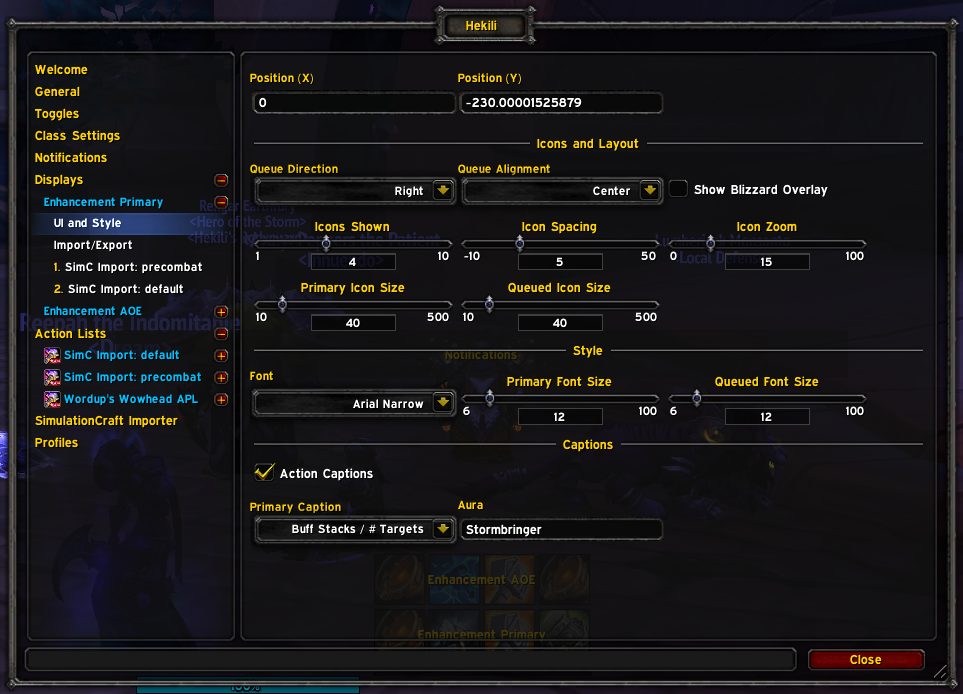
You are able to customize displays further. You can change the direction of your recommendation queues, modify its alignment, turn on Blizzard's overlay glow for the first recommendation icon in your display. You can specify that up to 10 icons are shown (more recommendations equals more processing power, though!), change the spacing, the zoom, the primary and queued icon sizes. You can specify the font and font sizes. You can specify that some additional information should appear on the base of the primary icon. You can use SpellFlash if you have that addon loaded as well.
You can use the Masque icon to apply a custom style to your displays.
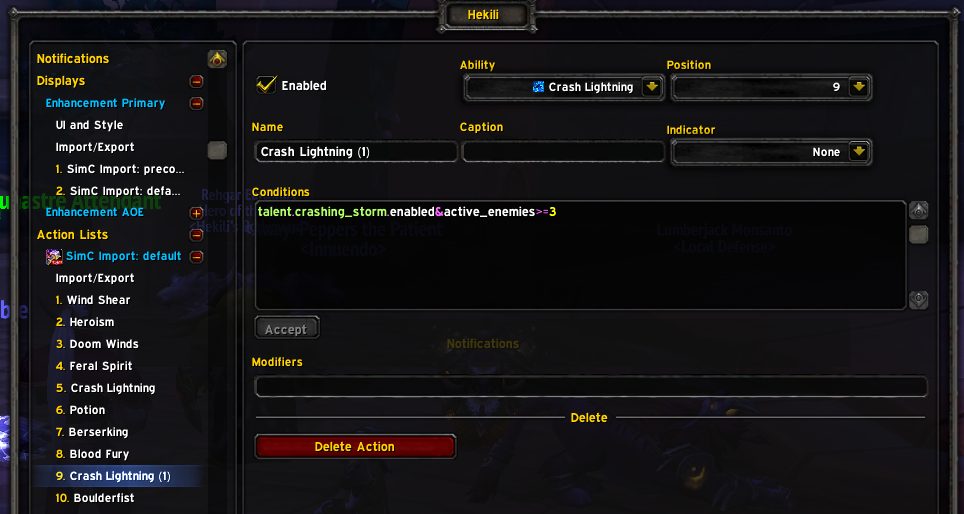
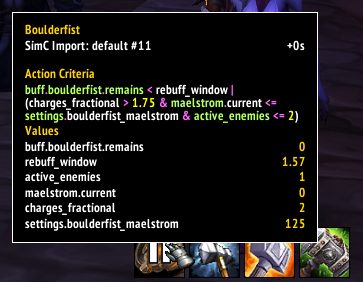
You can specify visibility in PvE and PvP settings with custom alpha/transparency settings for each. You can specify special Conditions using the SimulationCraft-like syntax used in the Action Lists (this is how the Specialization AOE displays are scripted to see if your Current Mode is "Single Target").
A display like the above can be created by going to /hekili > Displays > Specialization Primary > UI and Style and adjusting the following:
1. Set Icons Shown to 2.
2. Set Queued Icon Size to 30.
A display like the above can be created by going to /hekili > Displays > Specialization Primary > UI and Style and adjusting the following:
1. Set Icons Shown to 5.
2. Set Queue Direction to Up.
3. Set Queued Icon Size to 30.
A display like the above can be created by going to /hekili > Displays > Specialization Primary > UI and Style and adjusting the following:
1. Set Icons Shown to 1.
(Hey, that looks a lot like a single-icon priority helper WeakAura!)
Troubleshooting
1. There's nothing showing!
A. Did you use this addon before Legion? You may have old, incompatible data in your profile. Go to /hekili > Profiles and click Reset Profile to start from scratch. You may want to reload your UI at that point as well.
2. There's still nothing showing!
A. /hekili > General: Make sure Enabled is checked. If it's not checked, the addon may have detected an error and shut itself off. If that is the case, use an addon like BugSack/BugGrabber to collect any error messages and submit it via the ticket tracker (linked above). If the addon is enabled and nothing is showing, check your displays. /hekili > Displays > Primary and AOE. Check the alpha (transparency) settings on the Visibility tab. If your issue is with one of the default displays, you can create a new profile and see if your displays are shown.
ABOUT THIS LISTING
This page describes Hekili [The War Within] by Hekili. The description and screenshots are the author's own, imported from their listing on CurseForge on 14 August 2026: https://www.curseforge.com/wow/addons/hekili
Mythiq hosts no files for it. The download button goes straight to the release file on edge.forgecdn.net, so you are downloading from the author's own host, not from a copy of ours.
The download count, rating and comments on this page start at zero and count Mythiq only. The source's own figures are not copied here — they measure a different site, and a number that cannot be checked against our own ledger is not worth printing.
Media
WEgIC0W_1_.png
MOOO3D0_1_.png
Zr7XZNH_1_.png
053t1Jq_1_.png
Requirements
Game version
11.2.5
GAME FLAVOUR
This is a retail (modern World of Warcraft) build. It will not work in the Classic clients, which run a different interface API.
INTERFACE VERSION
Built against game version 11.2.5. After a patch, an addon that has not been updated is flagged out of date; most keep working, and the "Load out of date AddOns" checkbox on the character screen lets you try.
DEPENDENCIES
Some addons need a separate library addon (Ace3, LibStub and friends) that is not bundled. If the addon does not appear in the list in game, a missing dependency is the usual reason.
Installation
1. Quit World of Warcraft completely. The game reads the AddOns folder at launch and will overwrite settings for an addon added while it is running.
2. Download the archive with the button on this page and unzip it.
3. Move the folder — the one with the .toc file in it, not the zip's wrapper folder — into:
World of Warcraft\_retail_\Interface\AddOns
4. Start the game. On the character selection screen, click AddOns and check that it is listed and enabled.
IF IT DOES NOT APPEAR
Nine times out of ten the folder is nested one level too deep. Interface/AddOns/Thing/Thing/Thing.toc will not load; Interface/AddOns/Thing/Thing.toc will.
UPDATING
Delete the old folder before unzipping the new one. Unzipping over the top leaves files behind that the new version no longer expects.
This release downloads from edge.forgecdn.net, not from us, so
there is no checksum to compare against. Scan the archive before you unpack it.
Version history
v11.2.5-1.0.0Latest
2 Nov 2025 · 2.0 MB via edge.forgecdn.net · 16 downloads Download
Off-site on edge.forgecdn.net —
no checksum, because we never held this file.
Link checked by our review team on 14 Aug 2026.
Tell us if something is wrong — a file that will not work, content taken from
someone else, or anything that looks unsafe. Reports go to our review team, not
to the author.
We use cookies to ensure that we give you the best experience on our website and improve your experience. By continuing to use this site you consent to such use of cookies.


![Hekili [The War Within] cover art](/assets/img/uploads/mods/modcover_cat_hekili-the-war-within_14afd326.jpg)