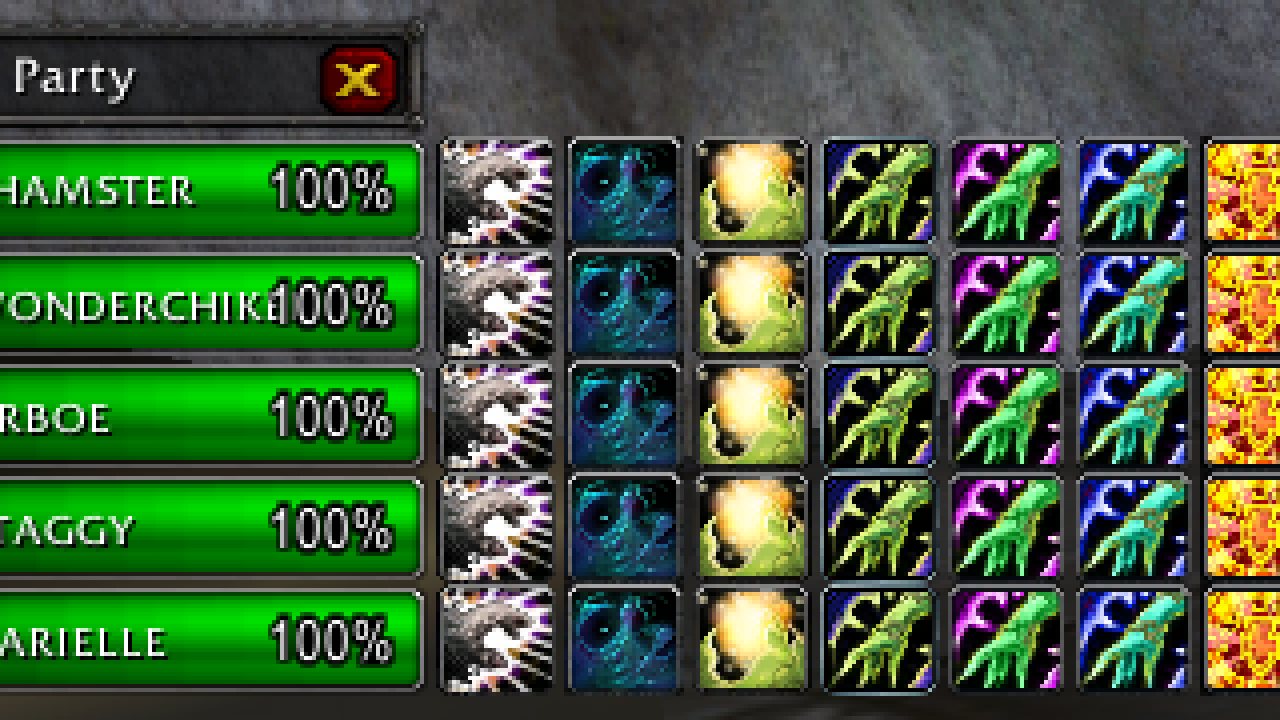
A healing user-interface addon that provides up to 15 customizable buttons next to each party or raid members name. Based on...
If you do encounter a bug please open an issue for it in the Issues section (you can click above). With so many comments it would be very easy for a bug to get lost within all the chatter.
Healium is a World of Warcraft addon who's main goal is to simplify healing of party or raid members.
Healium provides a customizable and intuitive interface optimized to make it easy to heal. Healium allows you to place any spell, item, or macro onto buttons right next to each person's healthbar. The buttons will cast the spell on the person they are beside of, without the need for you to target the person first.
Player healthbars are compact and close to each other which reduces the amount of screen space you have to look over to monitor the party's health. The spell buttons are very close by, minimizing the space you have to move your mouse, and thus the time required, to cast the spell.
Unlike other healing focused addons, Healium does not require you to set up complex key combinations (shift, ctrl, and alt) to cast your spells. In Healium, you just click a healing button next to the person's health bar. There is no memorization of key combinations required. However, you may use the Clique addon with Healium if you would like to configure mouse and key combinations for some of your heals, to be used along with Healium's buttons.
Raid support was added at the request of Healium's users, however, Healium is not optimized for large raids or battlegrounds, and can fill up half your screen or more if you have all party windows open and have a lot of buttons configured. It is recommended for up to 2 parties (10 players) or less.
Healium was originally based on FB Heal Box.
Healium Features
- Up to 15 customizable buttons next to each party/raid member's name and health
- The buttons have optional cooldown animations.
- The buttons have optional range checking with customizable frequency
- The button configurations are saved separately for each talent specialization automatically
- Drag and drop directly from the spell book to configure spells
- Unit Frames
- Party - Shows your current party
- Pets - Shows all pets in your party or raid
- Me - Shows you only
- Target - Shows your current target (if you have one)
- Focus - Shows your current focus (if you have one)
- Friends - Shows the people in your party or raid who are also on your Healium friends list.
- Tanks - Shows players who have the Tank role
- Healers - Shows players who have the Healer role
- Damagers - Show players who have the Damager role
- Group1-8 - Shows the corresponding raid group
- Optional mana bar for each player
- The Unit Frames are compatible with the Clique addon
- True Unit Frames: Left click on a player's healthbar to target the player or prime a spell and click to cast it on them
- Displays your HoTs / Buffs that have been assigned in Healium, which are currently on a player, next to each player with a cooldown animation.
- Debuff Warnings - Audible and visual indicators when someone has a debuff which you can cure with a spell in Healium
- Healthbar Highlight - Highlights the healthbar
- Healthbar Coloring - Changes the healthbar color to the color of the debuff type
- Button Highlight - Highlights the exact healing button for you to press
- Audio warning - Plays a (configurable) sound
Instructions
After installing Healium, you will want to configure the button count and the button's spells.
Follow these steps
Press the ESC key. That will bring up the Options window.
Press the Interface button.
Click the AddOns tab.
Find Healium in the list and click it.
You should see options specific to Healium, including the Button Count slider, and button dropdowns that allow you to pick healing spells for each button. Use the scrollbar on the right to access more options. The spells in the dropdown just include healing and emergency type spells specifically picked by Healium. If you do not see any spells in the dropdown, make sure you are on a character class that actually has heals. The dropdown will only show heals which you actually have currently in your spellbook. Also make sure you are in the spec that has the spells you want to cast because many spells are only available via talents and will not show up if you are in a spec that doesn't have the spell currently. Those talent specific spells will be saved when you switch specs.
The Healium config panel only shows healing and emergency spells. You may actually use any spell you have trained, including buffs by closing the Healium Config Panel if it is open and drag and dropping a spell directly from you spellbook onto any Healium button. Drag them directly to a Healium button, not to the dropdown in the config panel. It's just like dragging a spell to an action bar.
Macros and Items
Macros and Items are now supported in Healium as of 2.0.0. You must use Drag and Drop to configure them both, as neither macros nor items appear in the Healium menus. Macros must use [@mouseover] modifier to work correctly with Healium, otherwise they will use the default macro target logic (usually cast on you or your current target) Here is an example macro for instant Druid's Healing Touch that works with Healium:
/cast Nature's Swiftness /cast [@mouseover] Healing Touch
Note that if you omit the [@mouseover] it will cast on your current target or yourself, instead of using the target assigned to the Healium button.
Debuff Warnings
For the debuff warning options to work you simply need to assign any curing spells to buttons in Healium and enable the option(s).
Healium Friends
Healium Friends is a Healium frame which allows you to customize the people that appear in it. Anyone who is on your Healium Friends list, and also in your current party or raid will appear in this frame. It will work with people cross-realm as well. Remember, they have to both be on your Healium friends list and also in your current party or raid to show up.
The Healium Friends list is a global list (not specific to a character). That means that all of your alts on a server share the same list.
Management of the Healium friends list is done via these slash commands.
/hlm friends add (Target or name)
/hlm friends remove (Target or name or index)
/hlm friends list
/hlm friends clear
When using /hlm friends add, you may type a name instead of having them targeted. This could be used to add someone offline or otherwise not currently targetable. When you type their name instead of targeting them, make sure you properly capitalize their name, otherwise they will not appear. If you are typing a name for someone cross-realm use this format "Name-Realm" where there are no spaces before or after the -, but there may be spaces in the realm name, and also make sure you properly capitalize the realm name. Any improper capitalization will result in the user not appearing. It is recommended that you target them when adding, instead of typeing their name, so you don't even have to be concerned about capitalization.
When removing someone via /hlm friends remove, in addition to allowing you to target the person or type their name, you may also specify their 'index'. The index is the index shown next to the player's name via the command /hlm friends list.
Slash Commands
Type /hlm for a list of slash commands
/hlm config - Shows the Healium config panel
/hlm show [ party | pets | me | tanks | healers | damagers | friends | 1-8 ] - Shows the corresponding Healium frame
/hlm reset frames - Resets all Healium frame positions
/hlm friends list - shows the current Healium friends list
/hlm friends add (Target or name) - adds the player to the Healium friends list
/hlm friends remove (Target or name or index) - removes the player form Healium friends list
/hlm friends clear - clears the Healium friends list
Hints
Pet abilities can be used by putting them into macros
Macros and items can be used via drag and drop
You can right click on a frame caption to access the Healium menu. This can be more convenient than going through the wow UI to get to the Healium config panel.
You can right click on a health bar to drag the entire frame.
Left clicking on a health bar will target that player.
You may right click any Healium button to cast the spell on your current target instead of its intended target. This might be useful in emergencies or just as a way to cast spells/buffs on other people, using the Healium UI.
Known Issues
Changing some settings on the Config Panel while in combat will cause problems. Please try to set it up before combat.
Changes to the party/raid will cause right-click dragging of a frame window to stop.
There are some issues with Holy Word: Chastise and Holy Word: Serenity. The issues cam be somewhat overcome by making a macro and using the macro instead of the Holy Word Spell directly.
Healium now supports WoW Classic
For classic, the right click configure button menu and the button configuration in the Healium Configuration Panel has been completely replaced with Drag-And-Drop from the spellbook. This was to better support spell ranks. There isn't any plans to remove the old ways to configure the spells from retail version of Healium.
- - -
Just want to take a moment to talk about something. Healium is All Rights Reserved License which means it not to be taken,and/or edited by any other person. It is not only breaking copyright to do this but it is down right rude to the person(s) that have put the work writing any add-on, mod or other kind of software. It is NOT OKAY to download the source code put it on any other site or make changes to it. We have never address this before as we know normally people are trying to help and aren't thinking about the right vs. wrong, problems they can cause from doing such things, and troubles with troubleshooting this causes since people report bugs from the "borrowed" versions.
ABOUT THIS LISTING
This page describes Healium by Engy99k. The description and screenshots are the author's own, imported from their listing on CurseForge on 26 October 2026: https://www.curseforge.com/wow/addons/healium
Mythiq.net hosts no files for it. The download button goes straight to the release file on edge.forgecdn.net, so you are downloading from the author's own host, not from a copy of ours.
The download count, rating and comments on this page start at zero and count Mythiq.net only. The source's own figures are not copied here — they measure a different site, and a number that cannot be checked against our own ledger is not worth printing.
Requirements
Game versions
5.5.4
2.5.6
1.15.9
12.1.5
1.60.1
GAME FLAVOUR
This is a Classic build. Retail and Classic run different interface APIs, and an addon built for one throws Lua errors on the other — check you are installing into the right client folder.
INTERFACE VERSION
Built against game version 5.5.4, 2.5.6, 1.15.9, 12.1.5, 1.60.1. After a patch, an addon that has not been updated is flagged out of date; most keep working, and the "Load out of date AddOns" checkbox on the character screen lets you try.
DEPENDENCIES
Some addons need a separate library addon (Ace3, LibStub and friends) that is not bundled. If the addon does not appear in the list in game, a missing dependency is the usual reason.
Installation
1. Quit World of Warcraft completely. The game reads the AddOns folder at launch and will overwrite settings for an addon added while it is running.
2. Download the archive with the button on this page and unzip it.
3. Move the folder — the one with the .toc file in it, not the zip's wrapper folder — into:
World of Warcraft\_classic_era_\Interface\AddOns (or _classic_ for the current Classic expansion)
4. Start the game. On the character selection screen, click AddOns and check that it is listed and enabled.
IF IT DOES NOT APPEAR
Nine times out of ten the folder is nested one level too deep. Interface/AddOns/Thing/Thing/Thing.toc will not load; Interface/AddOns/Thing/Thing.toc will.
UPDATING
Delete the old folder before unzipping the new one. Unzipping over the top leaves files behind that the new version no longer expects.
This release downloads from edge.forgecdn.net, not from us, so
there is no checksum to compare against. Scan the archive before you unpack it.
Version history
v3.7.6Latest
24 Oct 2026 · 130 KB via edge.forgecdn.net · 0 downloads Download
Off-site on edge.forgecdn.net —
no checksum, because we never held this file.
Link checked by our review team on 26 Oct 2026.
Tell us if something is wrong — a file that will not work, content taken from
someone else, or anything that looks unsafe. Reports go to our review team, not
to the author.
We use cookies to ensure that we give you the best experience on our website and improve your experience. By continuing to use this site you consent to such use of cookies.