Pally Power Classic is based on version 3.0 from the Wrath of the Lich King days. This add-on provides an interactive and easy to use interface that allows you to set your own blessings (Righteous Fury, Aura, Seal and Blessings) and automatically checks for missing buffs with an easy to read indicator. While in a Party or RAID Pally Power can be used to assign blessings to other Paladins. Fellow Paladins will also have to run Pally Power for this to occur and the Paladin doing the assignments will have to be the Party Leader, Raid Leader or Raid Assistant. Fellow Paladins can select the "Free Assignment" setting to allow other non-leaders to change your Blessing assignment. In combat, none of the assignments can be changed due to the in-combat lock-out. Button controls are as follows from Top to Bottom:
Hover over will produce a tooltip on its usage and status colors. (Tooltips can be disabled in the PallyPower Options Panel)
- Left-Click to Lock (Red) / Unlock (Green) – will auto lock after 30 seconds.
- Right-Click opens Blessing assignment config.
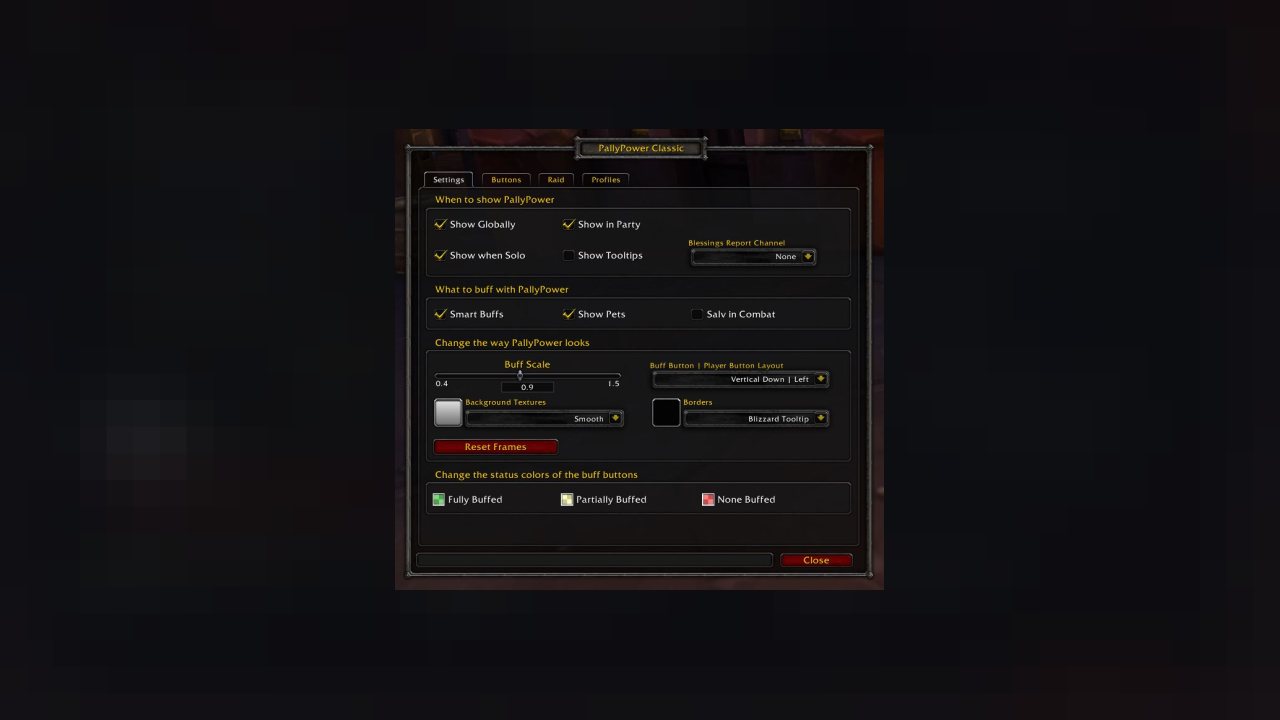
- Shift-Right-Click opens the PallyPower Options Panel.
Auto Buff Button: (Auto Buff duration limit cannot be disabled by Options --> Buttons: "Buff Duration")
This button is useful when a class already has a Greater Blessing ticking away and a player within that class had died, missed the initial Greater Blessing, just joined the Party/Raid, or has an alternate blessing assigned to an individual player other than the class assignment. For example, my guild will assign Greater Blessing of Salvation to Warriors but assign a Normal Blessing of Light to tanks. The Auto Buff button will refresh those Normal Blessing assignments on the tanks without recasting Greater Blessing of Salvation and wasting Symbol of Kings. Left and Right-Click will not work while in combat. Use the player’s Pop Out button (see below) to rebuff Blessings while in combat. There is an expanded version of the Auto-Buff feature in PallyPower Options --> Raid Panel to further automate buffs in Raid Groups.
- Left-Click will buff/refresh Greater Blessings starting with a class that isn't buffed followed by the least time remaining. Greater Blessings with a duration of 10 min or more cannot be reapplied while using the "Auto Buff and/or Auto Buff Class" buttons.
- Right-Click will buff/refresh Normal Blessings starting with a class that isn't buffed followed by the least time remaining. Normal Blessings with a duration of 4 min or more cannot be reapplied while using the "Auto Buff and/or Auto Buff Class" buttons.
Class Buttons: (Class Button duration limit can be disabled by Options --> Buttons: "Buff Duration")
- Left-Click will cast a Greater Blessing on that class. PAY ATTENTION TO THE TIMERS because Left clicking each class button more than once will just waste Symbol of Kings. Greater Blessings with a duration of 10 min or more cannot be reapplied while using the "Auto Buff and/or Auto Buff Class" buttons.
- Right-Click works much the same way the Auto Buff button works except that it's limited to buffing the players in the clicked class. Right-Click will not work in combat. Use the player’s Pop Out button (see below) to rebuff Normal Blessings while in combat. Normal Blessings with a duration of 4 min or more cannot be reapplied while using the "Auto Buff and/or Auto Buff Class" buttons.
Class Buttons --> Pop Out (*Player Names*): (Player Button duration limit can be disabled by Options --> Buttons: "Buff Duration")
- Left-Click will buff the clicked player with a Greater Blessing along with all players of that class. This is how Greater Blessings work by design so don't click each player with a Greater Blessing. You'll just waste Symbol of Kings. Once a class is buffed with a Greater Blessing, further attempts are prevented until the buff drops below 10 min unless you click on a player that doesn't have a Greater Blessing. Personally, I just hit them with a Normal Blessing and move on.
- Right-Click will buff the clicked player with a Normal Blessing. These are the only buttons that can be used to rebuff Normal Blessings while in combat.
- Mouse Wheel will cycle through Normal Blessings to assign an Alternate Blessing. Or use the Advanced Raid Auto-Buff. Check out the Images section for more details.
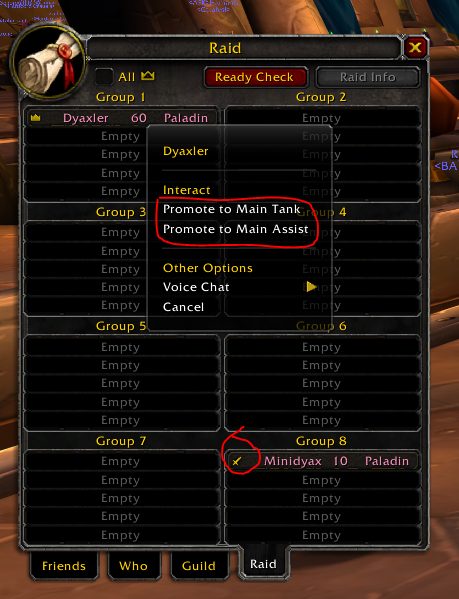
- CTRL-Left-Click will toggle the MAINTANK role (raid groups only) and an icon will appear indicating role status. Same function as opening the Raid tab and assigning the Main Tank there.
Normal/Greater Blessing of Salvation (Raid groups only):
For Warriors, Druids and Paladin's; if a player is assigned the MAINTANK role in that class group, Greater Blessing of Salvation is disabled while in combat. Otherwise, normal buffing operations are enabled. Additionally, you cannot apply a Normal Blessing of Salvation to a player that is assigned the MAINTANK role in or out of combat. If for some reason you need the ability to freely buff Blessing of Salvation on any class or player then you'll need to enable the option in PallyPower Options --> Settings and check "Salv In Combat". Also, the color of the Tank/Players button will be RED if they have the Blessing of Salvation buff active. Most tanks auto cancel Blessing of Salvation with addons. Once the buff is removed, the button turns GREEN. If they have an "Alternate" assignment then the button will be BLUE if they have the Greater Blessing and the Alternate Blessing needs to be applied. So GREEN means good, you're done. I'll reiterate this again... this only applies to Tanks or Players assigned the MAINTANK Raid Role. Other Warriors, Druids and Paladin's are unaffected by this behavior when buffing Normal Blessing of Salvation. You can buff Normal Blessing of Salvation freely on non-tanking players in or out of combat using the appropriate buff buttons based on combat status. I.E. while in combat use the Pop Out Player buttons not the Auto Buff Buttons.
Macro Examples:
These macros will simulate mouse clicks against the buttons in PallyPower. When the macro is executed it will cast what ever spell appears in the button. NOTE: You can only update the buttons while NOT in combat. The macros will update when the assignments are updated... thus... only out of combat. Thanks Blizzard!
Cast the assigned Paladin Seal
/click PallyPowerRF RightButton Down
Cast Greater Blessing on Warriors
/click PallyPowerC1 LeftButton Down
Cast Greater Blessing on Rogues
/click PallyPowerC2 LeftButton Down
Cast Greater Blessing on Priests etc...
/click PallyPowerC3 LeftButton Down
ABOUT THIS LISTING
This page describes PallyPower by aznamir. The description and screenshots are the author's own, imported from their listing on CurseForge on 3 October 2026: https://www.curseforge.com/wow/addons/pally-power
Mythiq.net hosts no files for it. The download button goes straight to the release file on edge.forgecdn.net, so you are downloading from the author's own host, not from a copy of ours.
The download count, rating and comments on this page start at zero and count Mythiq.net only. The source's own figures are not copied here — they measure a different site, and a number that cannot be checked against our own ledger is not worth printing.
Media
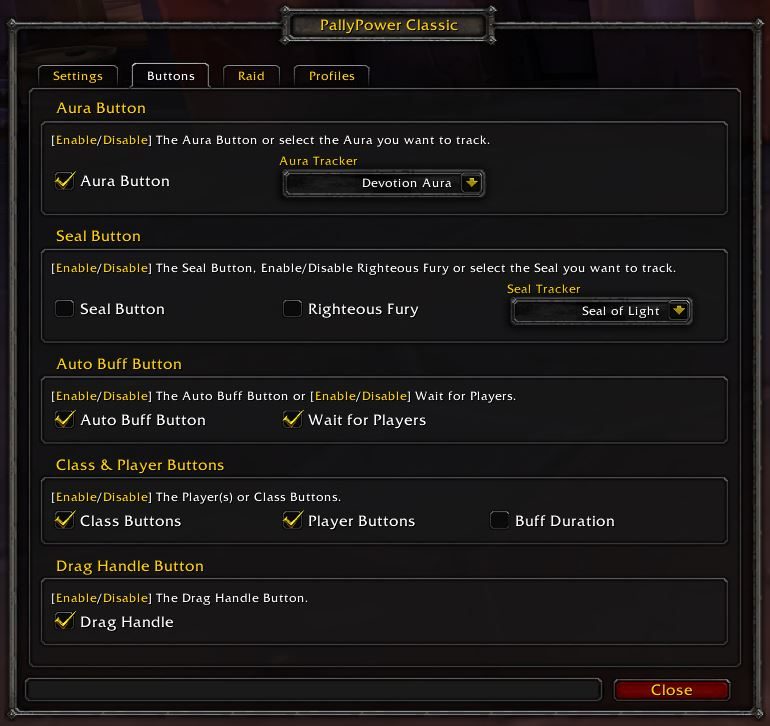
Buttons
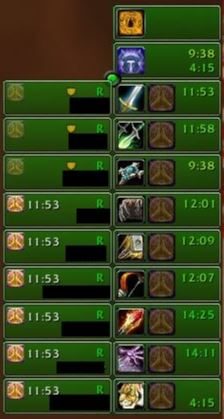
Set Maintank
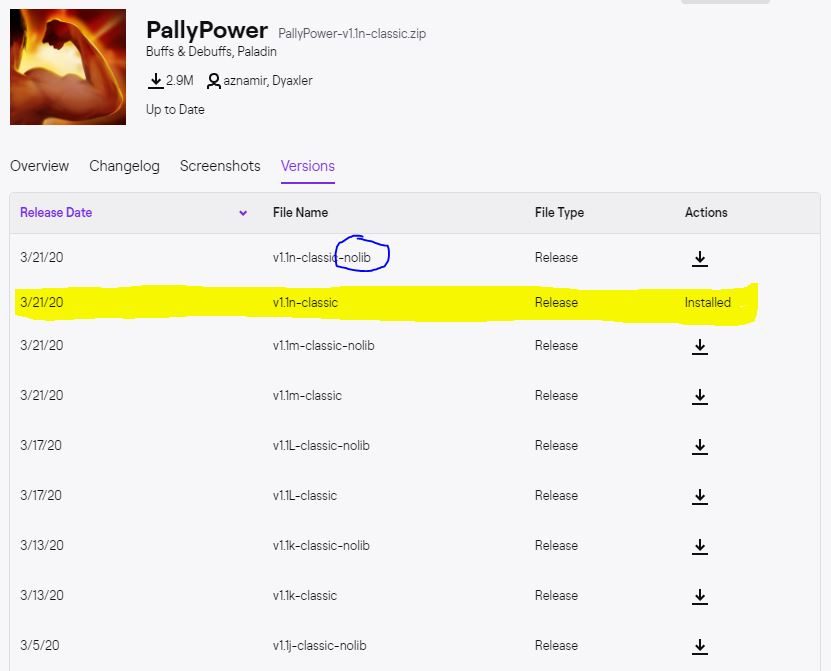
NoLib Version?
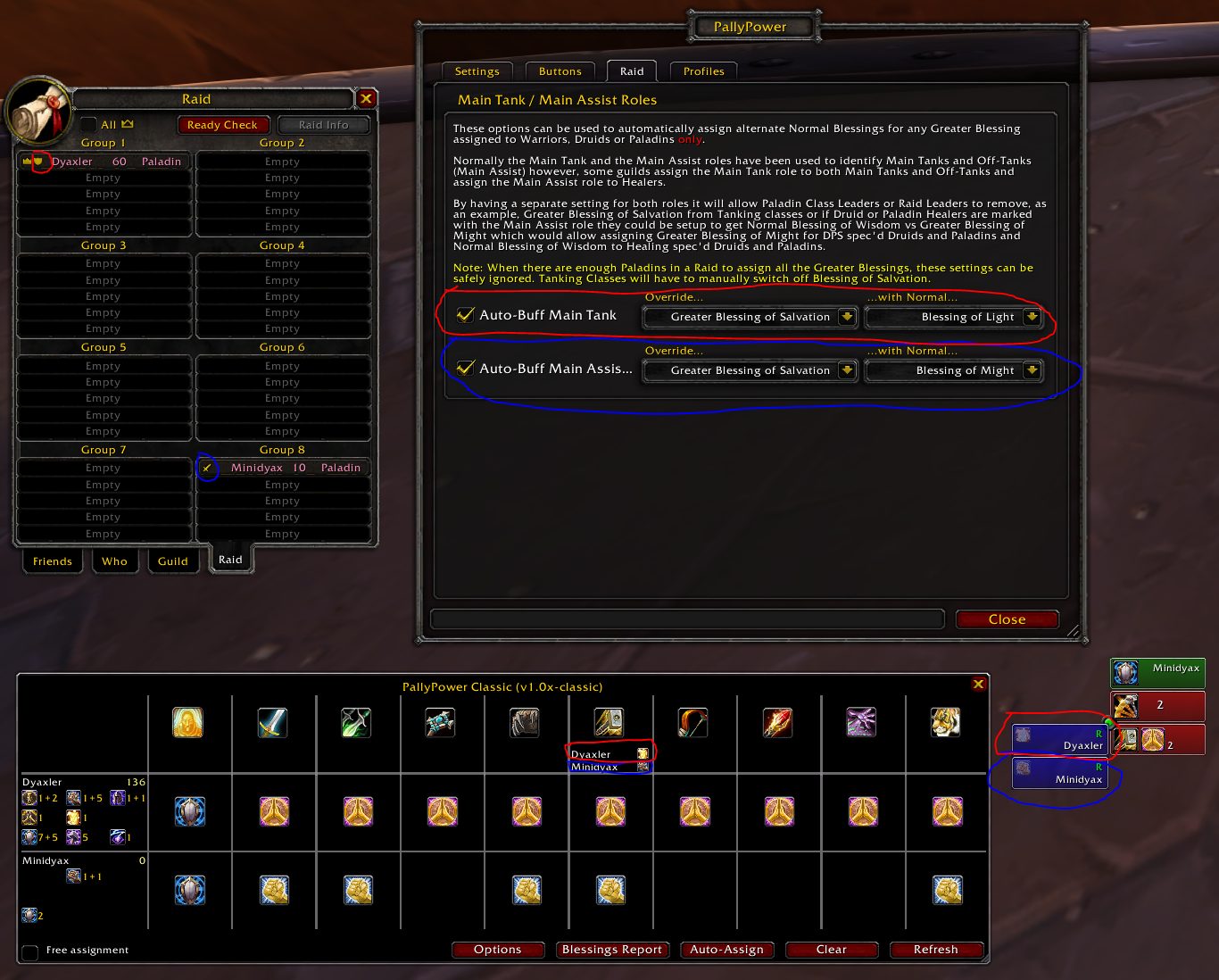
Advanced Auto-Buff
Main Tank/Assist
Requirements
Game versions
3.4.3
2.5.6
1.15.9
GAME FLAVOUR
This is a Classic build. Retail and Classic run different interface APIs, and an addon built for one throws Lua errors on the other — check you are installing into the right client folder.
INTERFACE VERSION
Built against game version 3.4.3, 2.5.6, 1.15.9. After a patch, an addon that has not been updated is flagged out of date; most keep working, and the "Load out of date AddOns" checkbox on the character screen lets you try.
DEPENDENCIES
Some addons need a separate library addon (Ace3, LibStub and friends) that is not bundled. If the addon does not appear in the list in game, a missing dependency is the usual reason.
Installation
1. Quit World of Warcraft completely. The game reads the AddOns folder at launch and will overwrite settings for an addon added while it is running.
2. Download the archive with the button on this page and unzip it.
3. Move the folder — the one with the .toc file in it, not the zip's wrapper folder — into:
World of Warcraft\_classic_era_\Interface\AddOns (or _classic_ for the current Classic expansion)
4. Start the game. On the character selection screen, click AddOns and check that it is listed and enabled.
IF IT DOES NOT APPEAR
Nine times out of ten the folder is nested one level too deep. Interface/AddOns/Thing/Thing/Thing.toc will not load; Interface/AddOns/Thing/Thing.toc will.
UPDATING
Delete the old folder before unzipping the new one. Unzipping over the top leaves files behind that the new version no longer expects.
This release downloads from edge.forgecdn.net, not from us, so
there is no checksum to compare against. Scan the archive before you unpack it.
Tell us if something is wrong — a file that will not work, content taken from
someone else, or anything that looks unsafe. Reports go to our review team, not
to the author.
We use cookies to ensure that we give you the best experience on our website and improve your experience. By continuing to use this site you consent to such use of cookies.