Read here what "SavedVariables" are and how you are able to backup and restore them:
AddonSelector
Read here what "SavedVariables" are and how you are able to backup and restore them:
https://www.esoui.com/forums/showthread.php?t=9235 -> "Backup"
Important information: Dependencies/libraries
This addon needs the following libraries in order to work:
-LibScrollableMenu
Accesibility mode: Supports narration
If the accessibility mode was enabled and the UI narration (not Chat narration!) was enabled too:
On mouse enter on an addon row the UI narration will read the addon name and the current enabled state, or disabled (manually or via missing dependencies).
Clicking the addon row/checkbox will read the new state afterwards.
What is "Addon Selector"?
It allows you to save the current enabled state of all of your addons in an addon pack (also called "profile") that you can give a name to.
Then you can click on the name of any saved addon pack in the drop down box and it will reset the enabled/disabled state of each addon back to the state it was in when you saved it (enabled/disabled).
You can save multiple addon packs.
Automatically checks for needed dependencies (AddOns or libraries) and enables them for you if you enable any addon manually or if AddonSelector loads a pack. (code spied at Votans Addon List -> See "Other recommanded addons" below)
Means: If any addon is enabled which got a non-optional dependency to another addon (including libraries), AS will automatically enable the dependencies once you enable that particular addon where the manifest .txt/.addon asks for that dependency.
For that to work your must either manually click on the addon checkbox/row, or AS loads the packs and enables the addon for you (else AddOns saved to your pack would not load at all, as their non-optional dependencies are missing).
AS will not disable dependencies if you disable any addon, and no other addon uses that dependency anymore!
It was causing many troubles with saved packs and thus was stripped from this addon.
-> To get this feature please install "Votans Addon List", but I msut say you might get into compatibility trouble here and should not use both AddOns in combination (at least if you experience any problems with not-enabled addons or too many addons enabled).
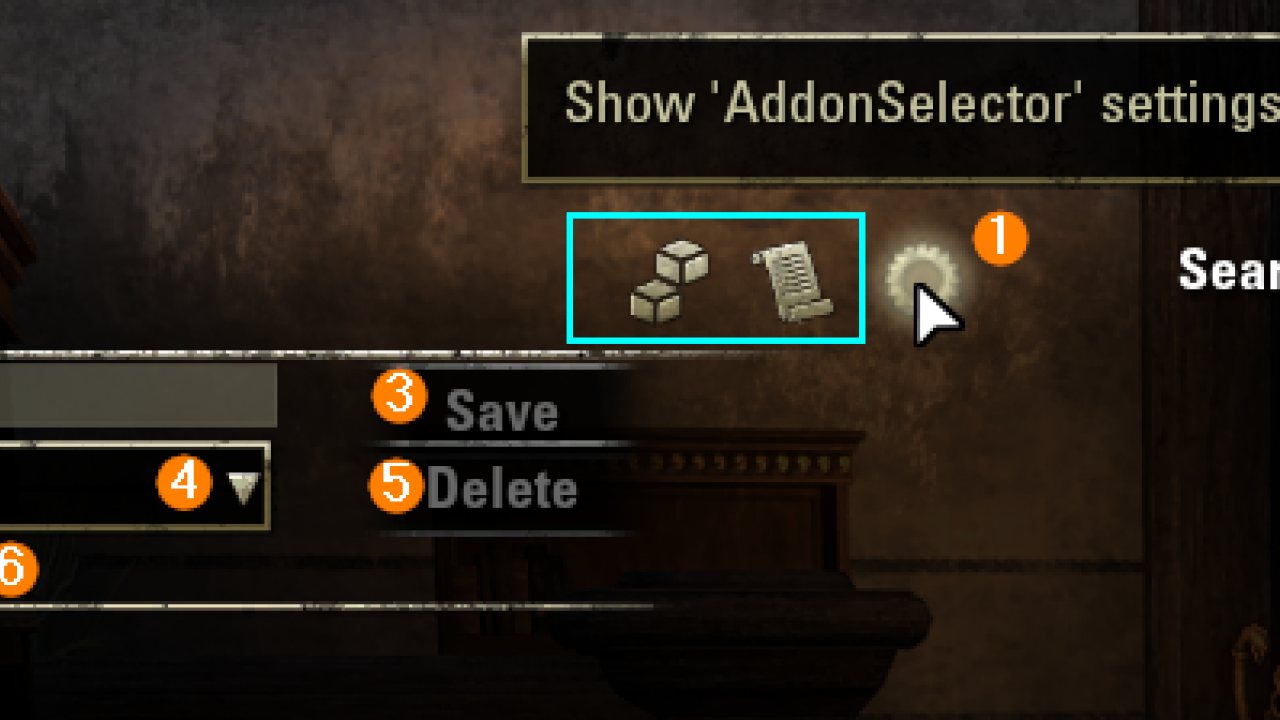
The addon's UI explained:
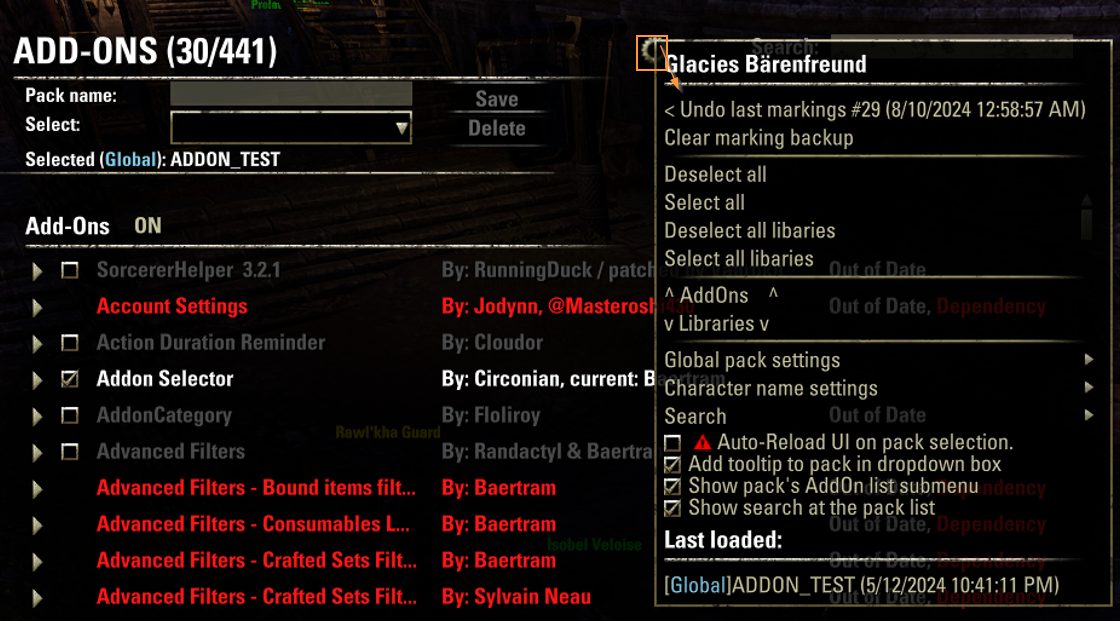
Other settings menu entries:
- Undo last mass-marking (will undo to the last automatically saved backup, which is saved as you mass-change any addon's state via the keybinds, settings context menu or SHIFT+click)
The entry shows the # of addons enabled, and the date & time as the backup was saved.
This backup is saved account wide, not per character!
- Clear last backuped mass-marking
- Deselect all addons (including libraries)
- Re-Select last enable addons (same like the keybind that switches between "re-select" or "select all")
- Select all addons (including libraries -> Will not change and enable you to always select all addons)
- Deselect all libraries
- Select all libraries
- Scroll up to AddOns
- Scroll down to libraries
- Support for addon "AddonCategory":
-Right click the search editbox and select a category to scroll to that category
Scrolling will bring the category to the center of the screen, due to the default's scroll list behavior
How are addon packs saved?
Enter a pack name in the pack name editbox and click the "Save" button right to it. Please read the more detailed instructions at "How do I use it?" below.
The default behaviour is to save the pack globally the same for all characters.
Globally saved packs will create an entry in the saved packs dropdown box (right to the "Selected pack" label).
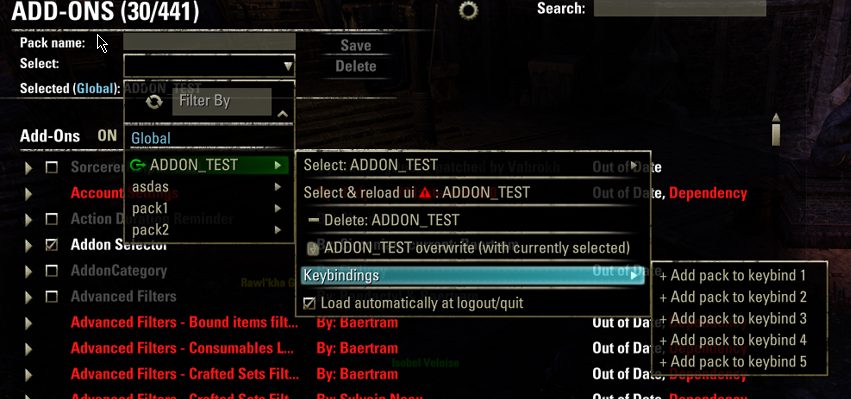
In the settings (gear icon at the top of the ingame addon manager) you are able to enable a submenu at globally saved packs where you, if you move your mouse above the pack name, would be able to select that pack, select that pack and reload the UI automatically, or delete this pack.
You can also just click the pack name, even with enabled submenu, to select the pack. There is no need to use the submenu to select the pack.
You can change the settings to save the packs "per character".
Per character saved addon packs will create an entry in the packs dropdown box using the currently logged in character name, where you will find all saved packs of that charatcer in a submenu, if you move the mouse cursor above the character name.
Saving character packs does only work for the currently logged in character! You are not able to change and save a pack of a non logged in character, this would just copy the pack to your currently logged in character (with "per character" save mode enabled) or to a global pack (with global save mode enabled).
You are able to see both, global and per character saved packs, in the packs dropdown box, if you enable this in the settings.
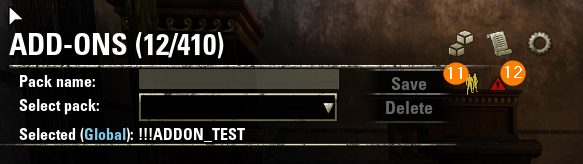
The currently selected save mode will be shown right to the "Save" button as icon. If global save mode is enabled no icn is visible. If per character save mode is enabled you'll see a small "2 heads" icon there.
Other features of this addon?
1) Settings menu shown via the "gear" settings icon at the top of the Addon Manager
The currently logged in char name will be shown as a headline of the settings menu.
2) Move the ingame addon manager:
Click and hold on the addon manager's headline and drag the whole addon manager window around:
3) Show the currently enabled/total number of addons in the headline:
4) Search for addons and scroll to them:
It also provides a search editbox where you can enter search texts, and by pressing the return key you will jump to the next addon matching your search string. Pressing return again will jump to the next, and so on.
Right click the search box to show the search history (if enabled in the settings). You are able to research the search term by selecting it. Search terms will be added to the history 2 seconds after you had stopped typing a string.
This history needs to be enabled within the settings menu's search settings.
5)Automatically reload the UI after selecting a pack:
If enabled in the settings selecting a pack will automatically reload the user interface to enable the new selected addons.
A small red triangle icon right to the "Save" button (right to the "Save per character" icon) will show you if this setting is currently enabled. The icon will be invisible if the setting is disabled.
Attention: If you enable the autoamtic reload of the UI you will not be able to select and delete a pack anymore without loading this pack! Disable this setting to select and delete packs without a reloadUI.
Exclusion: Globally saved packs with the setting enabled to add a submenu to the pack entries will have a submenu entry "Delete pack" which will be able to delete this pack without a ReloadUI.
6) Easier enabling/disabling of addons:
You can also click anywhere on the row (on the addon name or addon author area) to toggle the enabled state of the addon.
7) Mass enabling/disabling via SHIFT key:
Left click any addon name to set a "start point". And then SHIFT + left click on another addon name (not checkbox) to set the "end point".
The state of the "start point" clicked addon will be copied to all addons in between "start point" and "end point".
8) Keybinds to select all/deselect all and reselect the last changed ones:
Below the addon manager list you'll see keybinds to select all addons, deselect all addons.
If you choose to deselect all addons there will be enabled another keybind (at the same "deselect all" keybind) to re-select the previously selected addons (if you pressed deselect all by accident e.g.).
9) Tooltips at the packs and/or submenus show how many addons are in the pack
Shows how many libraries too and how many of the addons & libraries in the pack are "currently" enabled or even missing (were deleted on your harddrive/SSD meanwhile).
10) Direct change of saved pcks via the submenu/contextmenu.
Change a checkbox and press the button at the top of the menu to save it to the pack
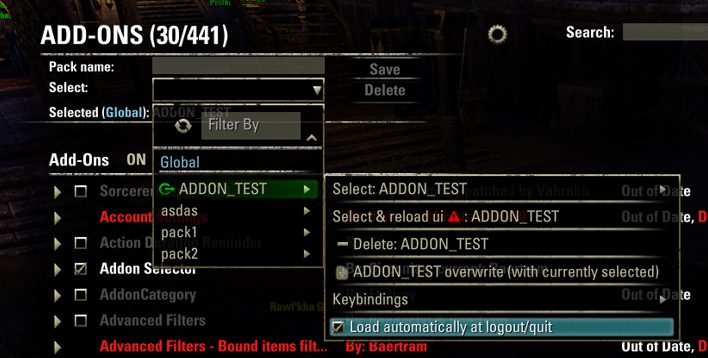
11)Automatically load a pack upon logout by using the checkbox at the pack's submenu/contextmenu.
This is saved per character. A light green (enabled) logout icon is shown at the selected pack's name.
You can skip the load of a pack on logout by using the slash commands
/aslskip, /asls or /loadpackskip. If the load at logout is skipped the red logout icon at the pack's name will show red (disabled) instead.
Keybinds:
AddonSelector uses the default keybinds for secondary and tertiary actions which you have bound in the general control settings.
Secondary action: Unselect all addons & libraries
Tertiary action: Select all addons & libraries, or if the "Unselect all addons & keybinds" was used before the keybind here will switch to "Re-select last saved" which will re-enable the addons that were active before "Unselect all addons & libraries" was used.
With update "Lost depths" API101035 ZOs adds a new default secondary keybind which will reset the unused keybindings.
Attention: this will reet keybinds of CURRENTLY not enabled addons too! So be carefull to use it or your saved addon keybinds will be gone if these addons are currently not enabled!
You can define up to 5 custom keybinds to load a pack. Setup them in controls settings menu and choose the keybind for a pack by the submenu (if enabled in the AS settings) or via the right click context menu.
13) Provides slash commands for the chat edit box:
See "Chat slash commands" below
How do I use it?
Select/deselect whichever addons you want.
You can click any addon with the left mouse key and scroll to another addon in the list. If you SHIFT+left click this addon all addons in between the 1st and the 2nd clicked addons will be enabled/disabled (depending on the state the 1st addon had after it was clicked by you).
In the Pack Name editbox type a name for the addon pack & click the "Save" button.
You can save multiple addon packs to be able to easily switch between different addon configurations.
If an addon pack name already exist for the currently selected save mode (global or "per characeter") and you click on the "Save" button an overwrite dialog will ask you to acknowledge the overwrite. The dialog will show you the used save mode too.
If you want to select the same name as the currently active pack click on the active pack label and the name will be written to the pack name for you!
Hint: Right clicking the pack name box will enter the currently logged in character name to the editbox. This could be used for globally saved packs to distinguish the usecase of the packs. Per character saved packs should not use this as the packs are saved below a character name entry in the packs dropdown already.
If you want to delete a pack select it first and then click the delete button.
Or if enabled in globally saved settings: Open the saved packs dropdown box, move the mouse above any globally saved entry, the submenu is shown. Select "Delete: " from the submenu. This will enable you the deletion of packs without having to enable them first!
Unfortunately this is not possible for "per character" saved packs.
Remember: If you got the "automatic reloadUI after pack selection" setting enabled make sure to turn it of if you do not want to have a reloadui happenign as you select any pack for deletion only!
A delete dialog will be shown where you need to acknowledge the deletion of the saved pack. The save mode, where the pack was saved, will be shown at the dialog too.
Chat slash commands
/rl, /rlui, /reload: Will reload the UI for you (Same as /reloadui)
/addons, /as, /addonsearch, /addonselector: Will open the AddOns manager and if you specify an addon name after the slash command it will search for it, e.g. /as FCO
/asap: Will output the currently active addon pack into the chat
/addonsettings or /lam to open the LibAddonMenu2 addon settings page /if LibAddonMenu-2.0 was loaded)
/aslskip, /asls or /loadpackskip. Skip the next "Load addon pack automatically at logout".
If the load at logout is skipped the red logout icon at the pack's name will show red (disabled) instead.
Added slash command /addonload, /loadpack, /asl
Added slash command /addonloadrl, /loadpackrl, /aslrl (same as bove but automatically reloads the UI if the pack was found)
Both slash command types (w/o and with rl at the end) will use the following parameters:
/addonload "charname here" "packname here" -> Will load the "packname here" of the "charname here" (character saved pack. Charname and packnamy may contain spaces if you put them in between quotes '...' or double quotes "...")
/addonload charnameHere packnameHere -> Will load the packnameHere of the charnameHere (character saved pack. Charname and packname must not contain spaces!)
/addonload "packname Here" -> Will load the "packname Here" of the currently logged in character (if character saved packs are enabled in the settings!) or from the global saved packs. "Packname here" may contain spaces if used between quotes or double quotes.
/addonload packnameHere -> Will load the "packname Here" of the currently logged in character (if character saved packs are enabled in the settings!) or from the global saved packs. No spaces must be added to the packnameHere
/asnone Disable all addons (including AddonSelector and dependencies)
Keybindings
Check the controls settings for them:
-Reload UI
-Select all
-Deselect all/Re-select previous
-Output addon pack to chat
-Load addon pack 1, 2, 3, 4, 5
Why did I write this?
I often install other addons or works in progress to look at code for someone or often need to toggle my own addons ON/OFF as I am working on them. I got sick of having to deselect everything I no longer need running & reselect everything I want running when I am done debugging something.
Known bugs
After selecting a pack from the pack dropdown box the ESC key, and some other keys are not working properly anymore. This will fix itsself by reloading the UI with the new selected pack's addons (or generally with a reloadui, e.g. via the keybind or the button at the bottom right of the addon manager).
> I've currently not found out what exactly causes this. If you got any idea or hint please write me a PM here on esoui.com, thanks.
Planned features
None
Other recommanded addons helping to manage your addons
Votans Addon List Automatically checking for needed dependencies and enabling them for you if you enable an addon + other nice features.
The original addon idea and code was provided by: Circonian.
ABOUT THIS LISTING
This page describes Addon Selector (Save & Load AddOn profiles/packs) by Baertram. The description and screenshots are the author's own, imported from their listing on ESOUI on 24 October 2026: https://www.esoui.com/downloads/info1161-AddonSelectorSaveLoadAddOnprofilespacks.html
Mythiq.net hosts no files for it. The download button goes straight to the release file on cdn.esoui.com, so you are downloading from the author's own host, not from a copy of ours.
The download count, rating and comments on this page start at zero and count Mythiq.net only. The source's own figures are not copied here — they measure a different site, and a number that cannot be checked against our own ledger is not worth printing.
Media
Requirements
Game versions
12.1.0
12.0.0
11.3.0
11.2.0
11.1.0
11.0.0
API VERSION
Built for ESO API version 12.1.0, 12.0.0, 11.3.0, 11.2.0, 11.1.0. After a patch the game marks add-ons built for the previous API as out of date; the "Allow out of date add-ons" checkbox in the add-on menu loads them anyway, and most work.
LIBRARIES
Many ESO add-ons depend on a shared library — LibAddonMenu-2.0 above all — which is installed separately, exactly like an add-on. A dependency that is missing shows as the add-on simply not appearing in the list.
CONSOLE
Add-ons are PC and Mac only. There is no way to load them on console.
Installation
1. Download the archive with the button on this page and unzip it.
2. Move the unzipped folder into your add-ons directory:
Windows — Documents\Elder Scrolls Online\live\AddOns
3. Start the game, and at the character select screen click Add-Ons.
4. Tick the add-on. If it is greyed out and marked out of date, tick "Allow out of date add-ons" at the top of the same panel.
5. Log in. Most add-ons need a /reloadui after they are first enabled.
UPDATING
Delete the old folder first. ESO loads everything it finds, and two copies of one add-on is the usual cause of "an add-on has produced an error" on login.
This release downloads from cdn.esoui.com, not from us, so
there is no checksum to compare against. Scan the archive before you unpack it.
Version history
v3.23Latest
3 Oct 2026 · 96 KB via cdn.esoui.com · 0 downloads Download
I recommand "Votans Addon List" for an easier addon handling in the addon manager. In addition to AddonSelectors automatic dependency enabling, it will automatically disable non needed dependencies for you, and provides other features too.
Changelog
v3.23 - 2026-10-03
-Updated version and dependency
-Fixed character name addon save (vanila, or pack name) bug if your character name contains any apostrophe (vanilla might escape that with \ then, which leads to wrong character names and thus not correctly saved enabled/disabled AddOns).
This fix should affect Addon Selector saved packs and vanilla enabled/disabled addons.
v3.22 - 2026-05-31
-Updated API and dependency version
-Fixed editboxes at AddonSelector change their textsize dependent on vanilla social setting "Chat size" (thanks Dakjaniels)
v3.21 - 2026-01-11
-Fixed reload user interface keybind (thanks dakjaniels)
v3.20 - 2025-12-21
-Updated dependencies
-Fixed lua error message if auto reload UI as pack loads, and auto load at logout pack were both enabled
v3.10 - 2025-11-30
Changed: Using keyboard dialog now, even in gamepad mode (for the ones unable to read that AS is not working in Gamepad mode ;-) And the ones using accessibility mode, which technically IS the gamepad mode.
v3.00 - 2025-11-23
!!!If you manually install addons: Please delete the folder live/AddOns/AddonSelector and then install the new version!!!
-Updated APIversions and dependencies
->Removed dependencies: LibCustomMenu, LibDialog
-Changed the folder and file structures to clean up code
-Some fixes (slash commands, settings, etc.)
-Changed update of the addon pack dropdown to update instatntly (for most cases, w/o having to close and reopen it)
-Added more submenus showing current addon pack's contents (addons and libraries) e.g. at the settings menu - Last loaded/Last active before disable all
-Added slash command /asnone to disable ALL addons (including AddonSelector and LibScrollableMenu) -> e.g. for testing console mode
v2.36 - 2025-01-17
-Compatibility fixes for Perfext Pixel
v2.35 - 2025-01-17
-Updated APIversion
-Made compatible with PTS u45
-Repositioned the currently used custom keybinds, reset unused and enhanced error messsage checkbox
v2.34 - 2024-10-19
Updated to newest LibScrollableMenu v2.32 -> Supports the "Apply changed addons" buttons in the submenus to show even if the search filter was used to e.g. show only 1 addon name -> Enables you to apply the changed checkboxes directly without having to clear the search editbox first.
v2.33 - 2024-08-19
Updated APIversion and dependency versions (Update LibScrollableMenu to version 2.3!!!)
Changed:
-Some performance improvements at addon pack selection and finding
Off-site on cdn.esoui.com —
no checksum, because we never held this file.
Link checked by our review team on 25 Oct 2026.
Tell us if something is wrong — a file that will not work, content taken from
someone else, or anything that looks unsafe. Reports go to our review team, not
to the author.
We use cookies to ensure that we give you the best experience on our website and improve your experience. By continuing to use this site you consent to such use of cookies.