Anything you need to manage your skills and gear.
I've adopted this great AddOn from AlphaLemming and changed the name to "AlphaGear 2" for the version that I maintain.
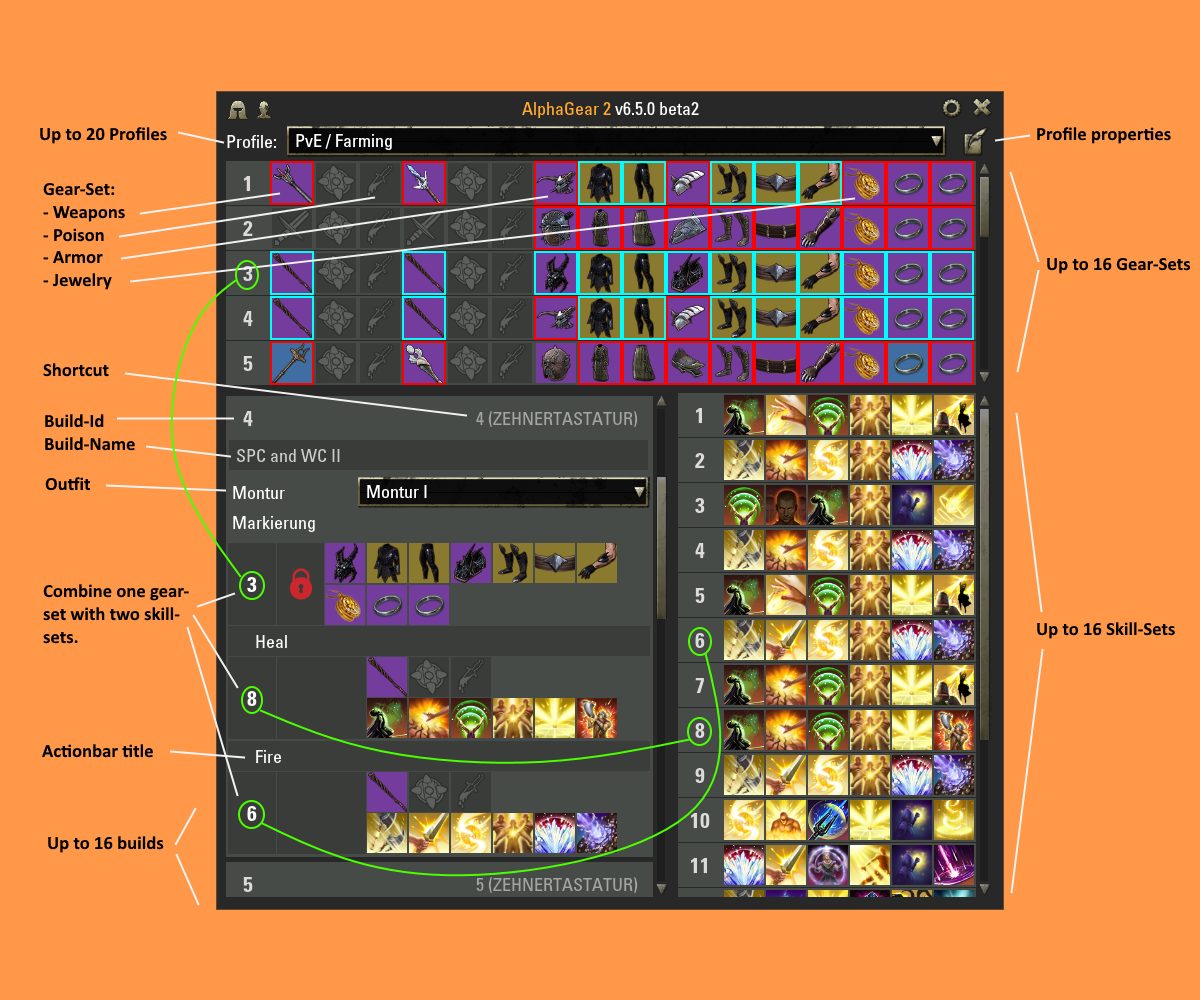
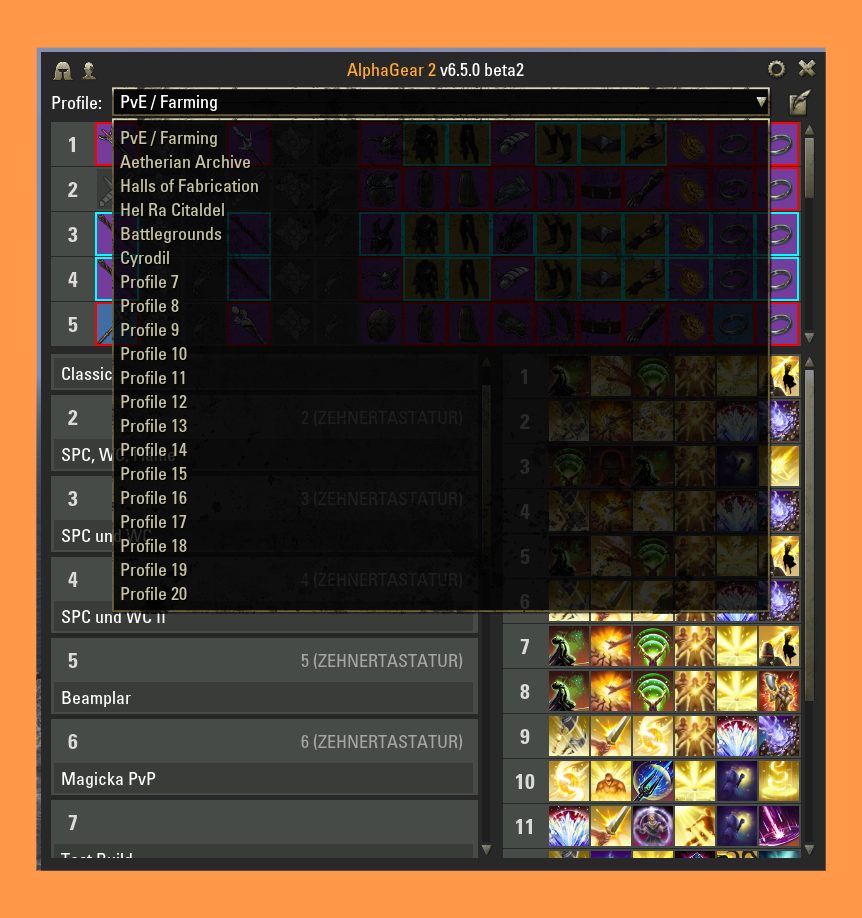
AlphaGear 2 lets you create up to 20 profiles each with 16 builds that may be activated with a single button press. Each build consists of
- 7 pieces of armor
- 3 pieces of jewelry
- 2 weapon bars including poison
- 2 skill bars
- 1 outfit or
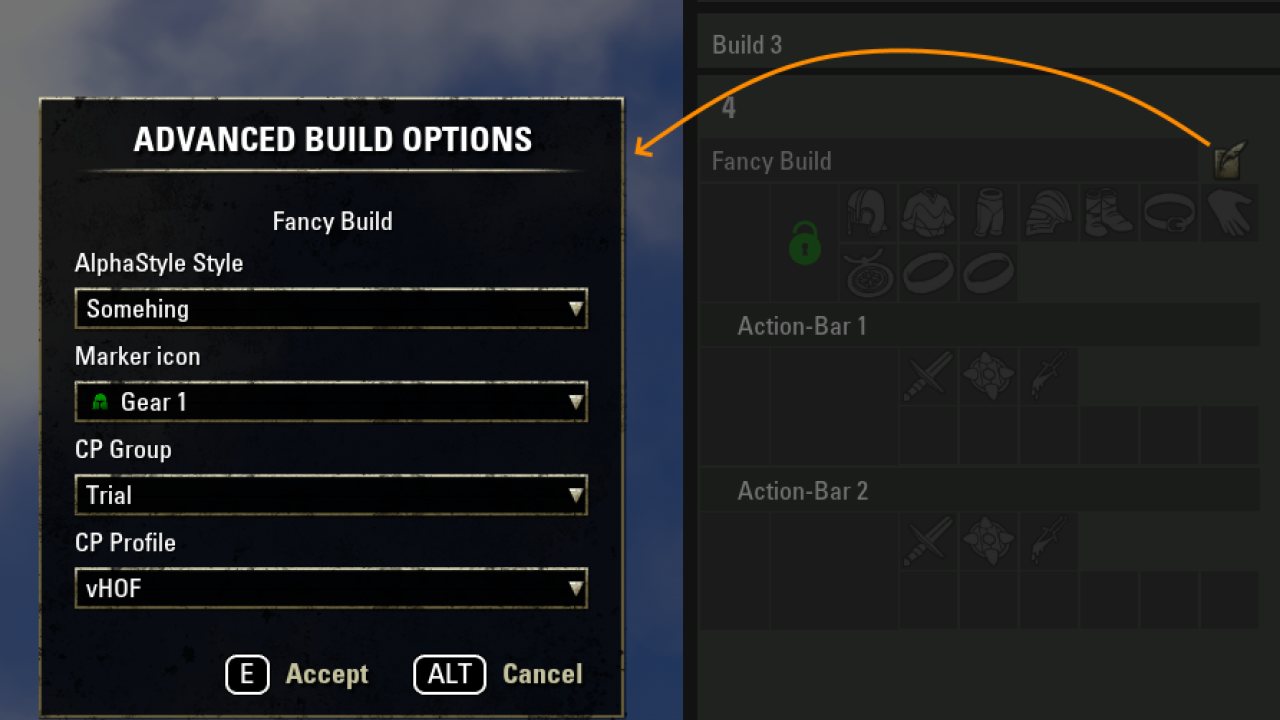
- 1 style (outfit, costume, pet etc. using AlphaStyle integration) (optional)
- 1 FCO Item Saver gear icon (optional)
- 1 Champion Point Set using Champion Points Slots add-on (optional)
- 3 (for each tree) champion point slottable sets, using Dynamic CP add-on (optional)
Please backup your AlphaGear settings prior update!
To users of AlphaGear 3
AG 3 is a branch of AG 2 by another developer. It isn't maintained anymore. If you want to switch back to AG 2, just make a backup of your SavedVariables, uninstall AG 3 and install AG 2.
Your builds will then be available in AG 2.
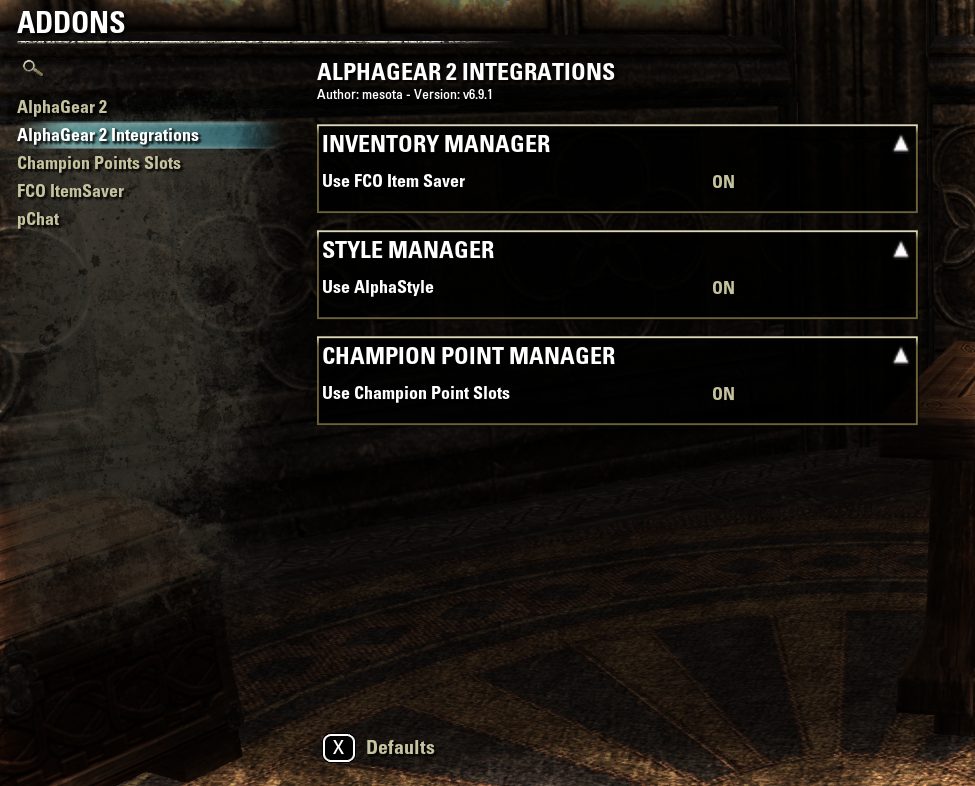
Now available: Integrations!
- Champion Points Slots - Manage your Champion Point Settings
- Dynamic CP - Link your champion point slottable sets to builds
- AlphaStyle - Manage your Style
- FCO Itemsaver - Manage your Inventory
Dependencies
This addon requires the following libraries:
- LibAddonMenu2
Use cases
- Switch between different roles
- Switch between PvE and PvP environment
- Create two (or more) builds with the same equipment, but different skill bars to create situational skill setups (solo, group, etc...)
- Switch Outfit and style (using AlphaStyle)
How To...
- Open the AlphaGear main window
- Execute "/alphagear"
or
- Click on the AG-icon
- Create a gear set
- Open the inventory
- Open the AlphaGear main window
- Find the gear sets in the upper pane
- Drag gear from the inventory (puppet or bag) and drop it into an AG gear set
or
- Shift-Click on a gear set number: all currently equipped items are copied into the set
or
- Right-Click on a gear set number to open the context menu
- Select "paste" or "insert currently equipped" to fill the set
- Create a skill set
- Open the skills window
- Open the AlphaGear main window
- Find the skill sets in the lower right pane
- Drag a skill from the skills window and drop it into an AG skill set
or
- Shift-Click on a skill set number: all currently equipped skills are copied into the set
or
- Right-Click on a skill set number to open the context menu
- Select "paste" or "insert currently equipped" to fill the set
- Open the build editor
- Open the AlphaGear main window
- Find the builds in the lower left pane
- Right-Click on a build number: the build editor is opened
- Create a build
- Open the build editor
- Click on the gear selector: all gear sets in the upper pane are highlighted
- Select one gear set from the upper pane
- Click on the skill bar 1 selector: all skill sets in the lower right pane are highlighted
- Select one skill set from the lower right pane
- Make sure that the selected skills match the selected weapon
- Repeat previous steps for skill bar 2
- Unequip poison
- Open the build editor
- Open then build for which poison must be removed
- Activate the gear lock (make it red)
- Assign a keybinding to a build
- Press ESC to open the ESO Menu
- Open Control/Keybindings
- Scroll down to the AlphaGear section
- Assign keys to the builds as needed (e.g. the number pad keys)
- Load builds with controller / gamepad
- Install LibRadialMenu
- Open LibRadialMenu's settings
- Assign AlphaGear 2 sets to the radial slots
- Rename a build
- Open the build editor
- Click in the build name field
- Edit name as needed
- Rename a skill bar
- Open the build editor
- Click in the skill bar name field
- Edit name as needed
- Remove a skill or a gear item from a skill/gear set
- Open the AlphaGear main window
- Find the sets in the upper or lower right pane
- Right-Click on the skill/item to remove it from the set
- Deposit or withdraw a gear set at/from a bank or home storage
- Open banking or home storage chest
- Open AlphaGear main window
- Find the gear sets in the upper pane
- Right-Click on the gear set number to open the context menu
- Select "deposit set" or "withdraw set" as needed
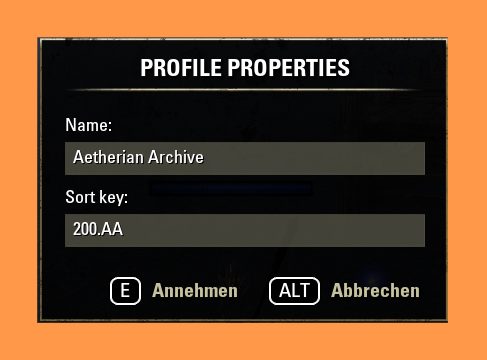
- Sort profiles
- Open the build editor
- Select a profile with the profile selection
- Open the profile properties dialog
- Enter a sortable text in the sort key field
- You can uses this sort key to group profiles for example
- Look at the Images for further usage instructions.
- Ask for help in the forum
Commands
- /alphagear - Toggles the main window.
- /agclear - Clears the entire profile that you have open, by typing /agclear all. Other options are /agclear gear|skills|sets, if you don't want to clear the entire page and instead only one of the sections. There is no undo button!
- /agimport - Imports the contents of a profile from a character on your account. You will need to use the character name and the profile ID number; if you don't provide the number, it will list the profiles you have available. For example: /agimport Kyrozan and then /agimport Kyrozan 8. This will overwrite your currently open profile, so be careful! There is no undo button.
Known Issues
- Updating a version prior 6.x with minion doesn't seem to work. Workaround: Delete the .../AddOns/AlphaGear directory and reinstall AlphaGear 2. Don't delete anything from .../SavedVariables. AlphaGear 2 will reuse your already created sets.
Credit goes to...
- Marify for Japanese translation
- adrienmoorea for French translation
- Hoft for Russian translation
- Snow and many others for valuable feedback
- UESP for the list of skill ids prior to Summerset
Found a Bug? Missing Feature?
Just post a comment. I'll add (almost) any request to the wish list.
-mesota
ABOUT THIS LISTING
This page describes AlphaGear 2 (Builds, Gear, Skills, Banking) by mesota. The description and screenshots are the author's own, imported from their listing on ESOUI on 24 October 2026: https://www.esoui.com/downloads/info1812-AlphaGear2BuildsGearSkillsBanking.html
Mythiq.net hosts no files for it. The download button goes straight to the release file on cdn.esoui.com, so you are downloading from the author's own host, not from a copy of ours.
The download count, rating and comments on this page start at zero and count Mythiq.net only. The source's own figures are not copied here — they measure a different site, and a number that cannot be checked against our own ledger is not worth printing.
Media
Requirements
Game version
12.1.0
API VERSION
Built for ESO API version 12.1.0. After a patch the game marks add-ons built for the previous API as out of date; the "Allow out of date add-ons" checkbox in the add-on menu loads them anyway, and most work.
LIBRARIES
Many ESO add-ons depend on a shared library — LibAddonMenu-2.0 above all — which is installed separately, exactly like an add-on. A dependency that is missing shows as the add-on simply not appearing in the list.
CONSOLE
Add-ons are PC and Mac only. There is no way to load them on console.
Installation
1. Download the archive with the button on this page and unzip it.
2. Move the unzipped folder into your add-ons directory:
Windows — Documents\Elder Scrolls Online\live\AddOns
3. Start the game, and at the character select screen click Add-Ons.
4. Tick the add-on. If it is greyed out and marked out of date, tick "Allow out of date add-ons" at the top of the same panel.
5. Log in. Most add-ons need a /reloadui after they are first enabled.
UPDATING
Delete the old folder first. ESO loads everything it finds, and two copies of one add-on is the usual cause of "an add-on has produced an error" on login.
This release downloads from cdn.esoui.com, not from us, so
there is no checksum to compare against. Scan the archive before you unpack it.
Version history
v7.0.1Latest
20 Oct 2026 · 132 KB via cdn.esoui.com · 0 downloads Download
v7.0.1
- Added a workaround for a U51 ZOS bug(?) that caused the main panel to snap weirdly when dragged via mouse in the inventory or skills menus
v7.0.0
- mesota has graciously allowed me (Kyzeragon) to take over maintenance of AlphaGear 2. The first release here (v7.0.0) merges a couple fixes from other people and a bunch of improvements from my personal fork over the years. The older changelog is preserved below, under the ===== divider
- Fixed scribing skills not being saved (by bregolthewild)
- Made bar swapping no longer required for skill swaps (author unknown)
- Greatly reduced the delay when swapping skills and gear
- Made it so inventory skips sorting if you use AutoCategory, while AlphaGear is processing bulk operations, e.g. when you are using "withdraw all gear sets" or equipping a set. This makes you unable to properly use the visible inventory for the duration, but cuts down on a lot of frame lag and makes the bulk operation much faster
- Added an "Import Profile" dialog, found next to the profile rename button, that can be used to import an entire profile from a different character. It does the same thing as /agimport below in a nicer UI, but also works for cross-account importing
- Added /agimport command. You will need to use the character name and the profile ID number; if you don't provide the number it will list the profiles you have available. For example: "/agimport Kyrozan" and then: "/agimport Kyrozan 8". This will overwrite your currently open profile, so be careful! There is no undo button
- Added /agclear command. Use it to clear the entire profile that you have open, by typing /agclear all. Other options are /agclear gear|skills|sets if you don't want to clear the entire page and instead only one of the sections. There is no undo button
- Added Dynamic CP slottables set integration. Attach user-created slottable set to a Build via the "Advanced Options" button on a build. Requires Dynamic CP 3.4.0+. Settings > AlphaGear 2 Integrations > Champion Point Manager > Use Dynamic CP
- Added support for equipping sets via LibRadialMenu, mainly for gamepad users. If CrutchAlerts is present, sets 1~8 icons will use the Crutch number icons; otherwise, they're just generic weapon ability icons
Updated versioning scheme: ..
Major: 7 for now, may increase if there's a major change to the codebase
Minor: Increases for new features
Patch: Increases for bug fixes or API bumps
Pre-7.0.0 change log (mesota)
AlphaGear 2 Version Numbers
I use the following semantics for AlpahGear 2 version numbers:
..
Major: Always "6" for the branch that I maintain
Minor: Increases with every new ESO version:
- 3.1 (Horns of the Reach) = "0"
- 3.2 (Clockwork City) = "1"
- 3.3 (Dragon Bones) = "2"
- 4.0 (Summerset) = "3"
- 4.1 (Wolfhunter) = "4"
- 4.2 (Murkmire) = "5"
- 4.3 (Wrathstone) = "6"
- 5.0 (Elsweyr) = "7"
- 5.1 (Scalebreaker) = "8"
- 5.2 (Dragonhold) = "9"
- 5.3 (Harrowstorm) = "10" (never made it to release)
- 6.0 (Greymoor) = "11" (never made it to release)
- 6.1 (Stonethorn) = "12"
- 6.2 (Markarth) = "13" (never made it to release)
- 6.3 (FoA) = "14" (never made it to release)
- 7.2 (Deadlands) = "15"
- 7.3 (Ascending Tide) = "16"
- 8.0 (High Isle) = "17"
Patch: Increases with every fixed bug or enhancement within a minor version.
Qualifier: Arbitrary labels like "alpha", "beta" to indicate a version which is not ready for production ;).
Wishlist
- Global UI
- Make AlphaGear icon visible only in the inventory screen
- Add configurable transparency for all the parts of the mod
- Add colored icons/change icon colors individually
- Add different icon sizes (smaller and larger than now)
- Tooltips for settings
- Split current-set icon into two separate icons
- Automatically open AG window if skills/inventory window is opened
- Show build buttons only for builds which are filled with meaningful item-/skill-sets
- Integrations
Off-site on cdn.esoui.com —
no checksum, because we never held this file.
Link checked by our review team on 26 Oct 2026.
Tell us if something is wrong — a file that will not work, content taken from
someone else, or anything that looks unsafe. Reports go to our review team, not
to the author.
We use cookies to ensure that we give you the best experience on our website and improve your experience. By continuing to use this site you consent to such use of cookies.